Controller polling rate test
 InputConfig is completely free on the Mac App Store.
Keep a stick moving in circles and press Measure. You'll see how many new readings a second the browser gets from your controller, along with the typical gap between two readings and the longest one. This is the rate a web page really gets, and that's the number that matters for browser games and for cloud gaming in a browser.
Run it
- Connect the controller and press any button on it.
- Start circling one stick, quickly and without stopping.
- Press Measure for 5 seconds and keep circling until the result appears.
- Run it again on the other connection, cable or Bluetooth, and compare the two.
Read the number
- Updates a second. Worked out from the typical gap. A gap of 8 ms is about 125 a second, 4 ms is about 250, and 1 ms is about 1,000.
- Typical gap. The middle value of all the gaps, so one hiccup does not move it.
- Longest gap. The worst wait between two readings. One long gap among short ones is a late or lost report, which you feel as a stutter.
The single number says little by itself. Use it to compare: one controller on cable and on Bluetooth, or two controllers in the same browser.
Controller latency test: what a page can and cannot measure
People who search for a controller latency test or an input lag test usually want the delay between pressing a button and seeing the result. A web page cannot time that, because it learns about a press only when the press arrives, so it has no starting point. What it can see is how often new readings arrive, and that is the part of the delay this page measures. At 125 updates a second a reading can be up to 8 ms old when it lands, and at 250 it can be up to 4 ms old. The rest of the trip, from the screen to your eye, takes hardware that watches both the button and the screen.
For a number you can use today, the reaction time test compares a controller with a mouse or a key, and the polling rate above compares one connection with another. On a Mac, controller input lag on a Mac covers what you can change. A page can compare two controllers or two connections fairly, and it cannot give you a latency in milliseconds.
If the controller does not show up
Climb this ladder, smallest step first:
- Press a button. A browser hides every controller from a page until a button is pressed while that page is in front.
- Click the page, then press again. The tab has to be the active one when you press.
- Reconnect it. Unplug the cable and plug it back in, or turn the controller off and on so it pairs again.
- Check that the computer sees it. On a Mac, a connected PlayStation, Xbox or Switch controller is listed in System Settings under Game Controllers. If it is missing there, the fix is pairing: controller connected but not working on a Mac has every step.
- Try a second browser. Browsers read controllers in different ways, so one that is missing in one browser can show up in another.
What this is not
This is not the controller's own polling rate. The page reads through the browser's Gamepad API, and the browser and the system collect the controller's reports on their own schedule first. A stick that is not moving sends nothing new, which is why the test needs you to keep circling. For delay you can feel in a game on a Mac, controller input lag on a Mac covers cable against Bluetooth and the fixes.
It works. Now give it a job
A tester tells you the controller is fine. On a Mac, InputConfig is the app I make for the next step: it turns the buttons and sticks you just tested into keys, the mouse pointer, clicks and scrolling, in any app or game. It is free, and its Live Visualizer draws the same live picture inside the app, with the touchpad and motion sensors a browser does not pass to a page. Test it here, then put it to work there.
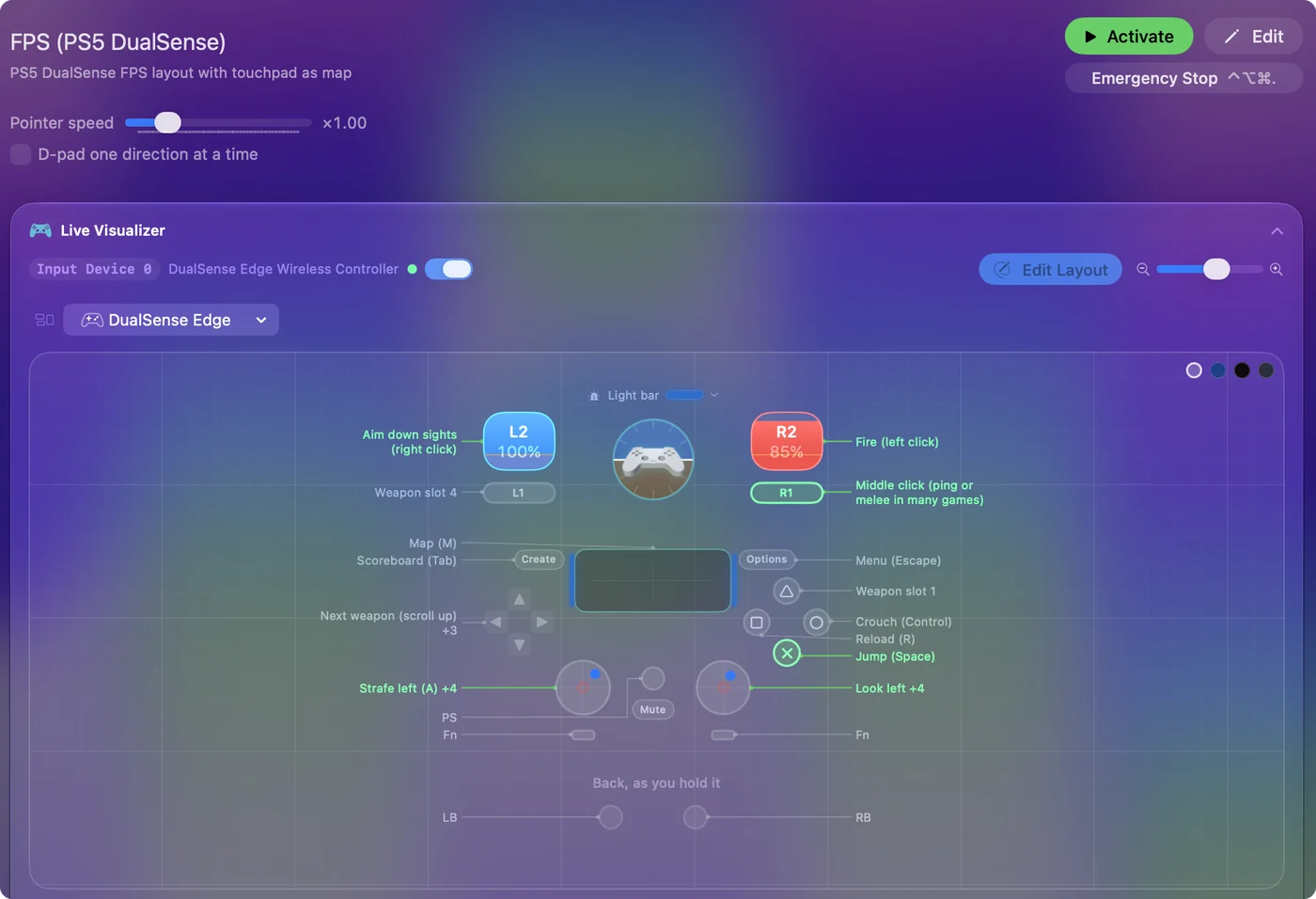
Use a controller as a mouse on a Mac shows it step by step.
More controller tests
- Gamepad tester
- Stick drift test
- PS5 controller drift test
- Xbox controller drift test
- Joy-Con drift test
- Controller vibration test
- Controller button test
- Controller trigger test
- Joystick test
- Racing wheel tester
- Arcade stick tester
- PS5 controller tester
- PS4 controller tester
- Xbox controller tester
- Switch Pro Controller tester
- Joy-Con tester
- 8BitDo controller tester
- Gamepad viewer and controller overlay
- Deadzone test and curve visualizer
- Controller button names and map
- Controller ID lookup
- Controller fix finder
- Mac game controller finder
- Preset chooser
Questions
How do I check my controller's polling rate?
Connect it, press a button, keep a stick circling and press Measure. After five seconds the page shows how many updates a second it received and the typical gap between two of them.
What is a good polling rate for a controller?
There is no single right number. A higher rate means less delay between your thumb and the game, and a steady rate matters as much as a high one.
Why is the result lower than my controller's advertised rate?
The page reads through the browser, and the browser and the system collect the controller's reports on their own schedule first. The number here is what reaches a web page, which can be lower than what the controller sends.
Does this page measure controller latency?
No. Latency is the whole trip from a press to the picture changing, and timing it needs hardware that watches the screen and the button together. This page counts how often new readings arrive, which is one part of it: at 125 updates a second, a reading can be up to 8 ms old when it lands.
How do I check the polling rate of a PS5 or Xbox controller?
Connect it, press a button, keep a stick circling and press Measure. Run it once on a cable and once over Bluetooth to compare the two.
How many Hz is my controller?
Hz means updates a second, so the number the page shows after five seconds of circling is the rate in Hz that reaches the browser.
Related
Updated