PS5 controller tester
 InputConfig is completely free on the Mac App Store.
Connect a DualSense by USB-C cable or Bluetooth and press any button on it. Every control lights up under its PlayStation name: Cross, Circle, Square, Triangle, L1, R1, L2, R2, L3, R3, Create, Options, the PS button and the touchpad click. A DualSense Edge and a PS4 DualShock 4 use the same layout here.
Check a DualSense in this order
- Connect it. A USB-C cable is the quickest start. To pair instead, hold the PS button and Create until the light bar flashes, then pick the controller in the computer's Bluetooth list.
- Press any button, so the browser shows the controller to this page.
- Press every button once and watch the checklist turn green.
- Let go of both sticks and press Record 5 seconds at rest, then run the circle test.
- Pull L2 and R2 slowly. Each should climb from 0 to 1 without a jump.
- Press Both motors, then each motor on its own.
Test on the cable first. A cable rules out a weak Bluetooth link, so anything that fails on it is the controller itself.
If the controller does not show up
Climb this ladder, smallest step first:
- Press a button. A browser hides every controller from a page until a button is pressed while that page is in front.
- Click the page, then press again. The tab has to be the active one when you press.
- Reconnect it. Unplug the cable and plug it back in, or turn the controller off and on so it pairs again.
- Check that the computer sees it. On a Mac, a connected PlayStation, Xbox or Switch controller is listed in System Settings under Game Controllers. If it is missing there, the fix is pairing: controller connected but not working on a Mac has every step.
- Try a second browser. Browsers read controllers in different ways, so one that is missing in one browser can show up in another.
What this page cannot test on a DualSense
The page reads the controller through the browser's Gamepad API, which carries buttons, sticks, triggers and rumble. It does not carry the touchpad surface, the motion sensors, the adaptive triggers, the light bar, the microphone or the mute button, so those are not tested here. On a Mac, the PS5 controller tester on Mac covers the touchpad, motion sensors, light bar, mute button and trigger feel with InputConfig. The microphone is a sound input, so check it in System Settings, Sound. On some systems the PS button also does a job of its own when pressed. A control that stays dark here is not proof it is broken, so check it once outside the browser.
It works. Now give it a job
A tester tells you the controller is fine. On a Mac, InputConfig is the app I make for the next step: it turns the buttons and sticks you just tested into keys, the mouse pointer, clicks and scrolling, in any app or game. It is free, and its Live Visualizer draws the same live picture inside the app, with the touchpad and motion sensors a browser does not pass to a page. Test it here, then put it to work there.
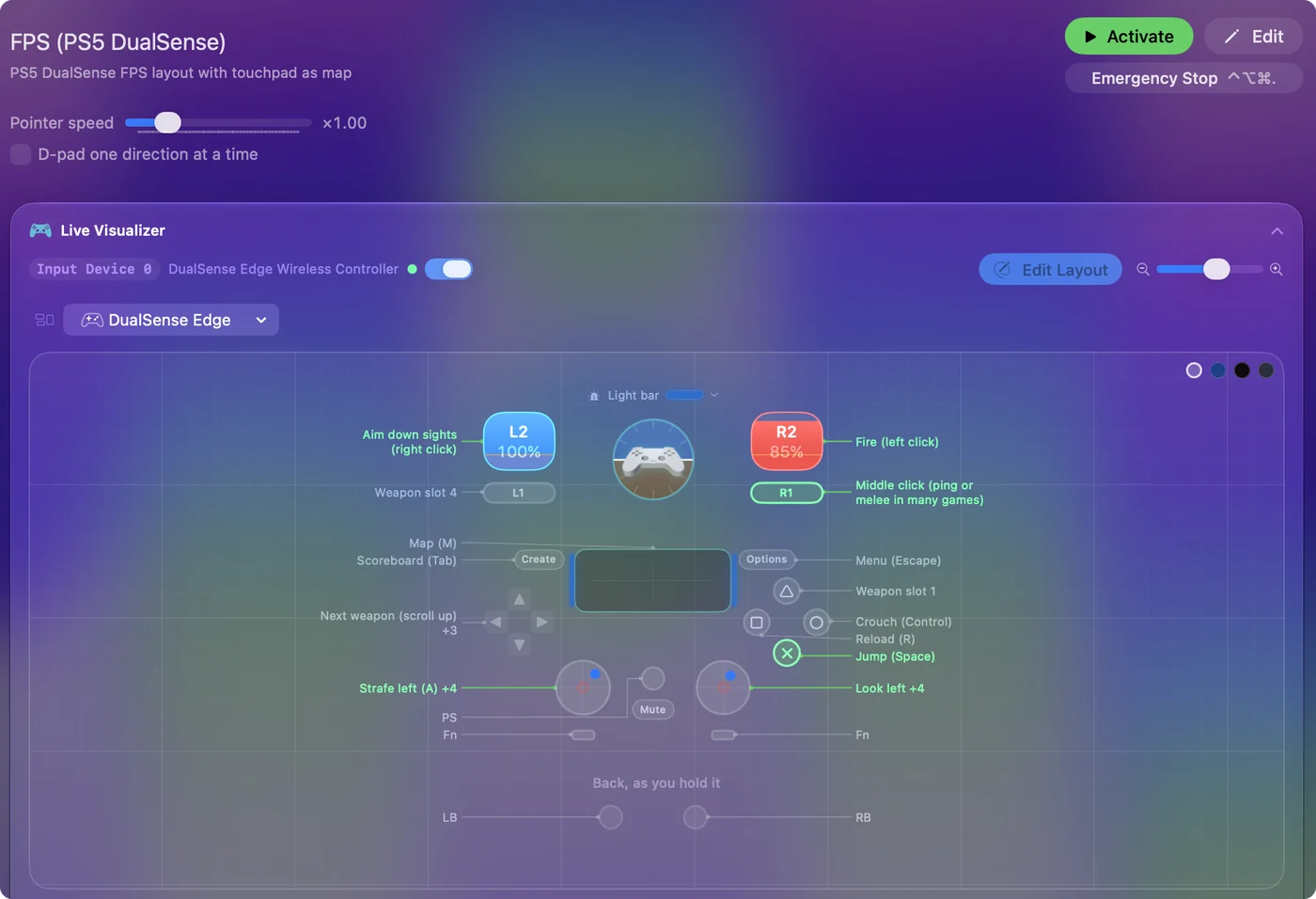
Use a controller as a mouse on a Mac shows it step by step.
More controller tests
- Gamepad tester
- Stick drift test
- PS5 controller drift test
- Xbox controller drift test
- Joy-Con drift test
- Controller vibration test
- Controller button test
- Controller trigger test
- Controller polling rate test
- Joystick test
- Racing wheel tester
- Arcade stick tester
- PS4 controller tester
- Xbox controller tester
- Switch Pro Controller tester
- Joy-Con tester
- 8BitDo controller tester
- Gamepad viewer and controller overlay
- Deadzone test and curve visualizer
- Controller button names and map
- Controller ID lookup
- Controller fix finder
- Mac game controller finder
- Preset chooser
Questions
How do I test a PS5 controller on a PC or a Mac?
Connect it by USB-C or Bluetooth, open this page and press any button on it. Every button, stick and trigger then shows live, the same way in a browser on Windows and on a Mac.
How do I check a PS5 controller for stick drift?
Let go of both sticks and press Record 5 seconds at rest. A healthy DualSense stick reads close to 0. The result is a number and a deadzone that would hide it.
Can I test the DualSense touchpad and adaptive triggers online?
Not on this page. It reads the controller through the browser's Gamepad API, which carries the touchpad click as a button but not finger position, motion or adaptive triggers.
Does this work with a PS4 controller?
Yes. A DualShock 4 uses the same layout here, with Share where the DualSense has Create.
Can I test a DualSense Edge here?
Yes. A DualSense Edge uses the same layout as a DualSense in a browser. Its back buttons send whichever button they are set to, so pressing one lights that button.
Can I test the DualSense microphone and speaker here?
No. This page reads the buttons, sticks and triggers and runs the vibration. The microphone and the speaker are sound devices, and the page does not open them.
Does this page test DualSense haptics?
It runs the controller's vibration through the browser, strong and weak. The finer haptic effects and the adaptive trigger resistance that PS5 games use are not part of the browser's gamepad interface, so they are not tested here.
Can I check the PS5 controller's battery here?
No. A browser does not pass a controller's battery level to a page. On a Mac, InputConfig, which is free, lists each connected controller at the top of its sidebar with its battery level.
Can this page calibrate a PS5 controller?
No. It reads what the controller sends and changes nothing on it. The drift recording gives you a deadzone that hides a stick resting off center, which is what calibration is usually wanted for.
Related
Updated