Mouse polling rate test
 InputConfig is completely free on the Mac App Store.
Move the mouse in quick circles inside the box, and the number below shows how many position updates a second, or Hz, reach the browser. In browsers that pass along every report the mouse sends, like Chrome, it comes close to the mouse's polling rate. That lets you compare 125, 500 and 1000 Hz settings, two ports, or two mice.
Run it
- Put the pointer inside the box under the number.
- Move the mouse in quick, wide circles for a few seconds without stopping.
- Read the number and the highest so far.
- Change the mouse's polling setting in its own app, or move it to another port, and run it again.
Use it as a mouse Hz checker
If you came looking for a mouse Hz checker, this is one, and it works for any mouse that moves a pointer. Run it three times and trust the highest number, because the best second is the least affected by a slow hand. A mouse set to 1000 Hz should land near 1000 in a browser that passes on every report. A mouse set to 4000 Hz can read far lower, because the browser and the computer may combine reports before the page sees them. The line that counts the pointer events the page received tells you when that is happening: if it matches the main number, the browser is handing the page one update per screen frame. I have not checked how Safari and Firefox count, so if your number looks stuck at your screen's refresh rate, try a Chrome-based browser.
Read the number
- Updates a second. Position reports that reached the page in the last second. Close to 125, 500 or 1000 means the setting with that number is the one in use.
- Highest so far. The best second of the run, which is the fairest single number.
- Pointer events the page received. How often the browser woke the page up, usually once per screen frame. When this matches the main number, the browser is not passing on every report.
A slow or stopping hand lowers the count. Keep the mouse moving the whole time and compare runs, not single readings.
Compare two settings fairly
A comparison only means something when you change one thing. Keep the same browser, the same mouse pad and the same kind of circling, and change only the setting, the cable or the port. Do three runs at each setting and write down the highest number from each. If the two highest numbers sit within about 5 percent of each other, I would call them equal, which is my rule of thumb and not a standard. Change one thing, run it three times, and keep the highest.
What 125, 500, 1000 and 4000 Hz look like
Polling rate is how many times a second the mouse reports where it is. The time between reports is 1000 divided by the rate, and that gap is the oldest a pointer position can be when it arrives. The last two columns show how many reports fit in one frame of a 60 Hz and a 144 Hz screen, which is why a high rate looks smoother on a fast display.
| Rate | Time between reports | Reports per frame at 60 Hz | Reports per frame at 144 Hz |
|---|---|---|---|
| 125 Hz | 8 ms | about 2 | under 1 |
| 500 Hz | 2 ms | about 8 | about 3.5 |
| 1000 Hz | 1 ms | about 17 | about 7 |
| 4000 Hz | 0.25 ms | about 67 | about 28 |
At 125 Hz a pointer can be 8 ms behind your hand, and at 1000 Hz it is 1 ms. From 1000 to 4000 Hz the gap shrinks by less than a millisecond. Whether you can feel that depends on the game and on you, and I have not tested it. Going from 125 to 1000 Hz changes the gap by 7 ms, and going from 1000 to 4000 Hz changes it by under 1 ms.
Check your mouse polling rate on a Mac
The test works the same on a Mac: open the page, put the pointer in the box and circle. Two things differ from Windows. First, macOS has no polling rate setting that I know of, so the rate lives on the mouse or in its maker's own app, and this page only confirms what arrived. Second, an Apple Magic Mouse is a Bluetooth device and I have found no polling setting for it, so read its number as a comparison with your other mice, not against a spec.
- InputConfig's polling rate is a different setting. In InputConfig, Polling rate is 60, 120, 180 or 240 Hz, with 120 the default. It is how often the app samples its inputs, and it does not change the mouse.
- DPI and profile buttons never reach the Mac. They are handled inside the mouse, so no web page and no app can see them.
- Wired against wireless. Run the test on each connection with the same mouse. A Bluetooth link has its own timing, so the same mouse can read lower there.
If the number is far below the setting
Climb this ladder, smallest step first:
- Move faster. A mouse sends nothing new while it is still, so slow circles undercount.
- Try a Chrome-based browser. Some browsers count one update per frame, whatever the mouse sends.
- Plug the receiver in directly. A hub or a front-panel port can slow reports down.
- Check the mouse's own app. The polling setting lives there, and some mice drop to a lower rate on battery saving.
What this is not
This is not a measurement taken at the USB port. The computer can combine the mouse's reports before the browser sees them, so the number can be lower than the real polling rate, never higher. That is why it is best for comparing: one mouse at two settings, or two mice in the same browser.
More from the mouse
The mouse tester checks every button, the wheel and double clicks, and the double click test looks only at a button that clicks twice. For a controller, the controller polling rate test counts updates the same way. On a Mac, InputConfig, the free app I make, gives the side buttons real jobs.
How this fits with InputConfig
This page measures clicks and pointer movement. InputConfig is the free auto clicker and button mapper for the same jobs on a Mac: its Auto Clicker preset clicks on a timer and starts and stops with fn F6, and any mouse button up to 32 can do something else.
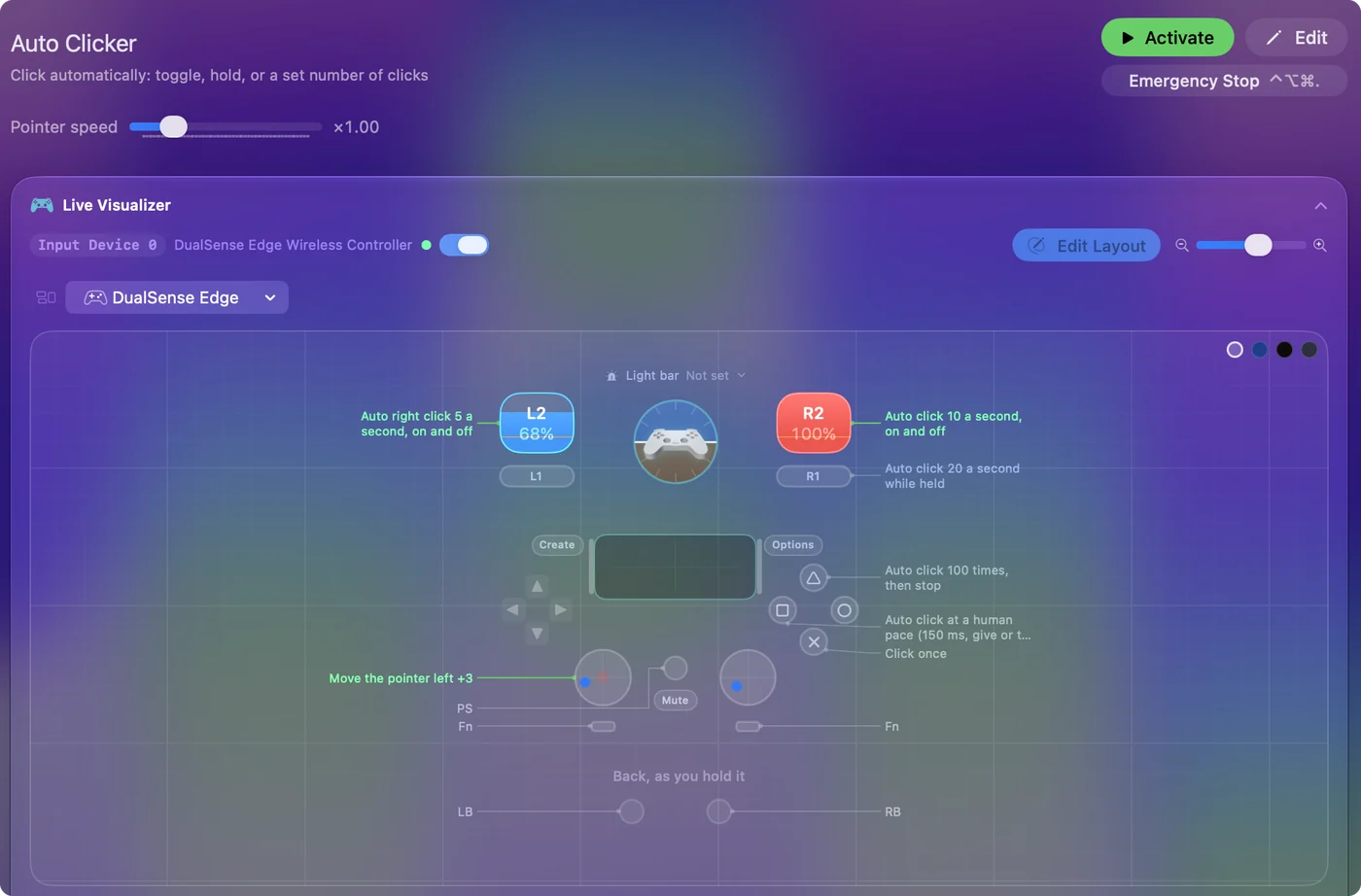
The free auto clicker for Mac shows it step by step.
More mouse and clicking tests
Questions
How do I check my mouse polling rate?
Move the mouse in quick circles inside the box on this page and read the number. It is the rate that reaches the browser, which is the useful one for comparing settings and ports.
Why does my mouse read lower than its polling rate setting?
The computer and the browser can combine reports before the page sees them, and a browser that does not pass on every report counts about one per screen frame. A hand that slows down or stops lowers the count too. Use the number to compare, not as an exact reading.
How accurate is a browser polling rate test?
It is accurate about one thing: how many position updates reached the page each second. It is not a reading taken at the USB port, so it can come out lower than the mouse's real rate and never higher. That makes it good for comparing one mouse at two settings, or two mice in the same browser.
Is a wired mouse faster than a wireless one?
Not by definition. A wireless mouse on its own receiver can report as often as a cable, depending on the model and its setting, and Bluetooth has its own timing and can report less often. Run this page once on each connection with the same mouse and compare the numbers.
How do I change my mouse polling rate on a Mac?
I know of no macOS setting that changes it. The rate is set on the mouse or in its maker's own app, then you check it here. InputConfig's Polling rate setting is a different thing: it is how often the app samples its inputs, not how often the mouse reports.
What polling rate should a mouse use?
There is no single right number. A higher rate means smaller steps between pointer positions, and a steady rate matters as much as a high one.
Related
Updated