Controller button names and map
 InputConfig is completely free on the Mac App Store.
Click any control to see what it's called on each controller family, the index InputConfig uses for it, and what a built-in preset binds to it. Pick a preset from the menu and the whole map labels itself.
Click a control on the map.
Button numbers are the ones shown in the editor's input menu and stored in preset files (for example btn 0 for the bottom face button). A stick is two axes, each bound one direction at a time. Scan in the app makes the numbers unnecessary; they are here for reading preset files and for the Steam Controller and other pads that report differently.
Every control
| Control | Xbox | PlayStation | Switch | In a preset file |
|---|---|---|---|---|
| Bottom face button | A | Cross | B | btn 0 |
| Right face button | B | Circle | A | btn 1 |
| Left face button | X | Square | Y | btn 2 |
| Top face button | Y | Triangle | X | btn 3 |
| Left bumper | LB | L1 | L | btn 4 |
| Right bumper | RB | R1 | R | btn 5 |
| Left trigger, as a button | LT | L2 | ZL | btn 6 |
| Right trigger, as a button | RT | R2 | ZR | btn 7 |
| Left system button (held with btn 9 for three seconds, the emergency stop) | View | Create / Share | Minus | btn 8 |
| Right system button (held with btn 8 for three seconds, the emergency stop) | Menu | Options | Plus | btn 9 |
| Home button | Xbox | PS | Home | btn 10 |
| Left stick click | LS | L3 | L stick press | btn 11 |
| Right stick click | RS | R3 | R stick press | btn 12 |
| Touchpad press | Touchpad | btn 13 | ||
| Share button (Xbox Series) | Share | Capture | btn 14 | |
| Microphone mute (DualSense) | Mute | btn 15 | ||
| Left back paddle (DualSense Edge) | Left paddle | btn 16 | ||
| Right back paddle (DualSense Edge) | Right paddle | btn 17 | ||
| Paddle 3 (controllers with four) | btn 18 | |||
| Paddle 4 (controllers with four) | btn 19 | |||
| Left FN button (DualSense Edge) | FN left | btn 20 | ||
| Right FN button (DualSense Edge) | FN right | btn 21 | ||
| D-pad up | D-pad up | D-pad up | D-pad up | hat U |
| D-pad down | D-pad down | D-pad down | D-pad down | hat D |
| D-pad left | D-pad left | D-pad left | D-pad left | hat L |
| D-pad right | D-pad right | D-pad right | D-pad right | hat R |
| Left stick, pushed left | LS left | L stick left | L stick left | axi 0 - |
| Left stick, pushed right | LS right | L stick right | L stick right | axi 0 + |
| Left stick, pushed up | LS up | L stick up | L stick up | axi 1 - |
| Left stick, pushed down | LS down | L stick down | L stick down | axi 1 + |
| Right stick, pushed left | RS left | R stick left | R stick left | axi 2 - |
| Right stick, pushed right | RS right | R stick right | R stick right | axi 2 + |
| Right stick, pushed up | RS up | R stick up | R stick up | axi 3 - |
| Right stick, pushed down | RS down | R stick down | R stick down | axi 3 + |
| Left trigger, pulled (analog) | LT pull | L2 pull | ZL | axi 4 + |
| Right trigger, pulled (analog) | RT pull | R2 pull | ZR | axi 5 + |
How this fits with InputConfig
These pages test a controller or look up what you need for it: a fix, a button name, a game or a preset. InputConfig is what puts it to work on a Mac: it maps every button, stick and trigger to keys, clicks, the pointer or scrolling, per app if you like, and its Live Visualizer draws the controller live with what each control does.
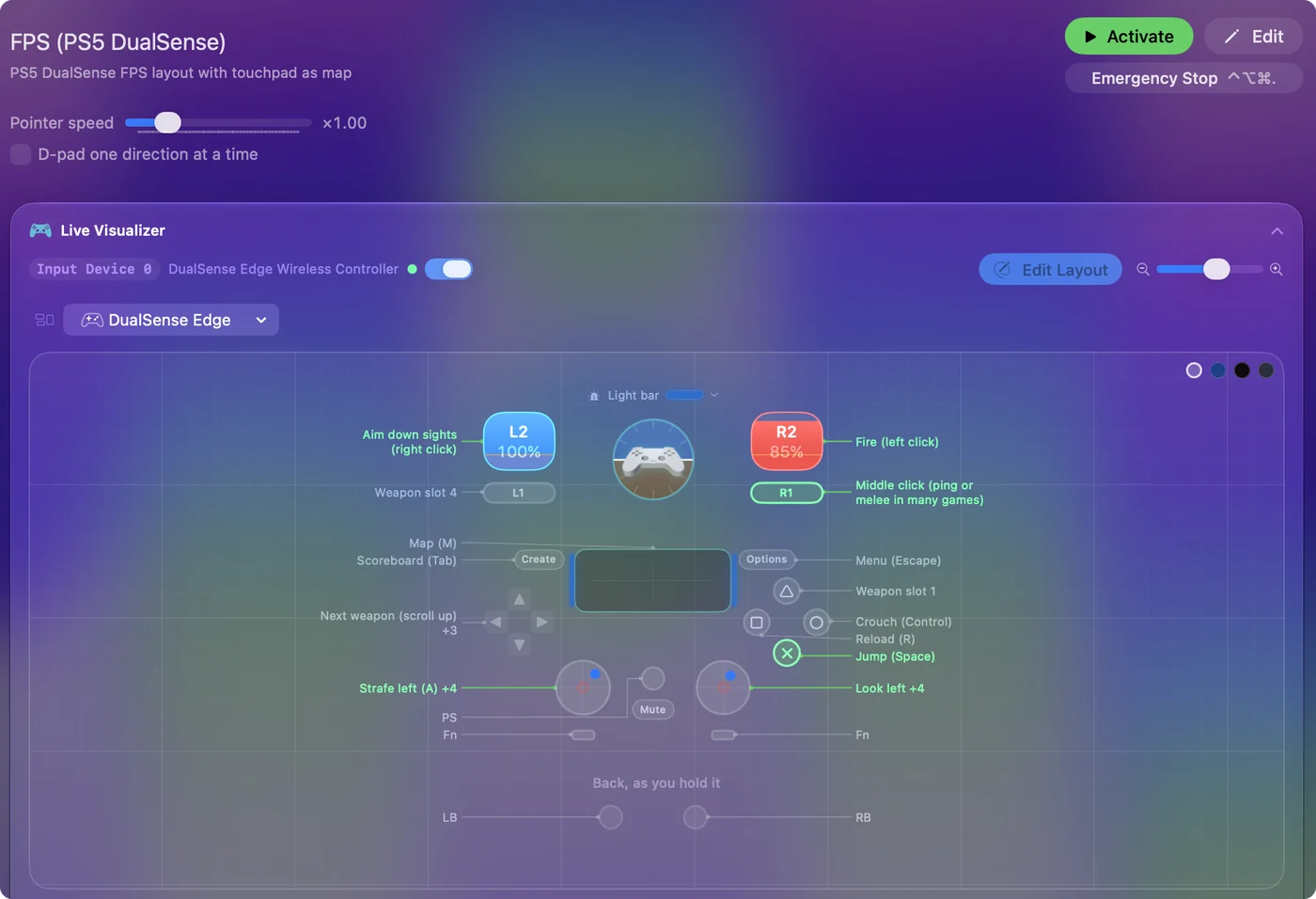
Use a controller as a mouse on a Mac shows it step by step.
More controller tests
- Gamepad tester
- Stick drift test
- PS5 controller drift test
- Xbox controller drift test
- Joy-Con drift test
- Controller vibration test
- Controller button test
- Controller trigger test
- Controller polling rate test
- Joystick test
- Racing wheel tester
- Arcade stick tester
- PS5 controller tester
- PS4 controller tester
- Xbox controller tester
- Switch Pro Controller tester
- Joy-Con tester
- 8BitDo controller tester
- Gamepad viewer and controller overlay
- Deadzone test and curve visualizer
- Controller ID lookup
- Controller fix finder
- Mac game controller finder
- Preset chooser
Related
Updated