Pen pressure test
 InputConfig is completely free on the Mac App Store.
Draw on the canvas with your pen. The line follows your pressure, and the readout shows pressure, tilt and rotation as the tablet sends them.
Draw a slow stroke from light to heavy. A smooth taper means pressure is working.
What each reading means
- Pressure. 0 percent is a hover or a feather touch, 100 percent is as hard as the pen reports.
- Tilt. The pen's lean left and right, and toward and away from you. Upright is 0 and 0.
- Twist. Rotation around the pen's own length. Most pens report 0 here.
- Eraser end. Pens with an eraser show it, and the page erases while you use it.
If the browser shows pressure here but your drawing app does not, the problem is the app's setting, not the tablet.
If pressure does not work on a Mac
Climb this ladder, smallest step first:
- Install the maker's driver. Most tablets need their own driver on a Mac for pressure.
- Allow the driver. In System Settings, Privacy & Security, the driver may need Accessibility or Input Monitoring. Turn it on, then restart the driver or the Mac.
- Replug the tablet. Use a direct USB port, not a hub, while you test.
- Try another browser. If one browser shows fixed pressure and another does not, the browser is the limit.
If your tablet's driver can send a key press for an express key, set it to a spare key such as F13 to F19, and InputConfig can make that key press any Mac shortcut, for free. The key still sends itself as well, which a spare key leaves harmless. InputConfig can also read the pen itself as an input: pressure, tilt, the pen buttons and the eraser, as pen pressure as an input on a Mac shows. For the buttons on the tablet, see drawing tablet buttons on a Mac.
How this fits with InputConfig
InputConfig does not change pen pressure, which comes from the tablet's driver. It can read the pen as an input: pressure, tilt, the pen buttons and the eraser can each press a key or a shortcut.
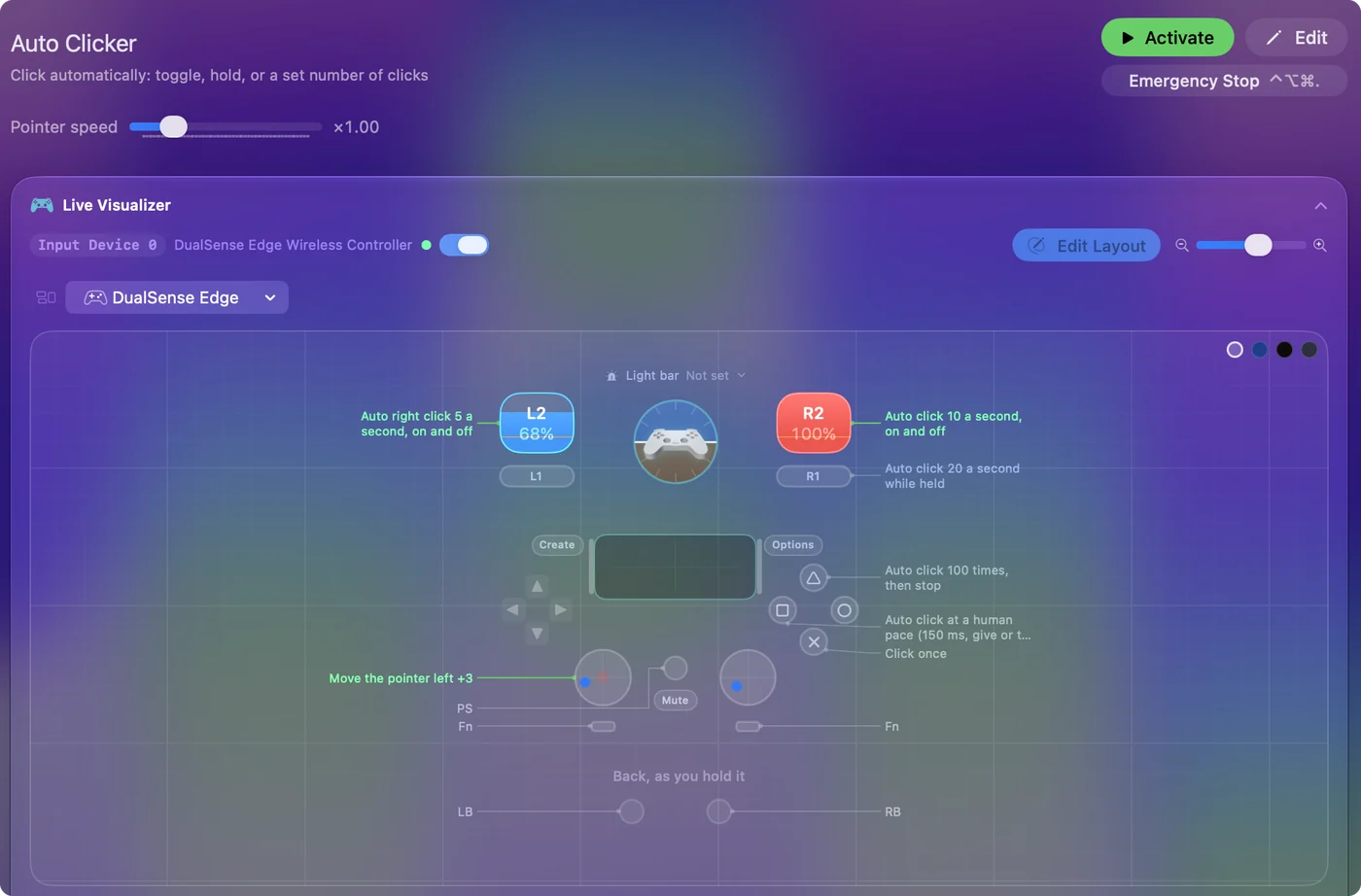
The free auto clicker for Mac shows it step by step.
More mouse and clicking tests
Questions
How do I test pen pressure?
Draw on the canvas with your pen. The line gets thicker as you press harder, and the readout shows the pressure from 0 to 100 percent.
Why is pressure stuck at 50 percent?
That is what browsers report when the device sends no pressure, such as a mouse, or a tablet whose driver is not passing pressure through. Install or update the tablet's driver and try again.
Does this work with an iPad and Apple Pencil?
Yes, in Safari on iPad the Apple Pencil reports pressure and tilt. With Sidecar on a Mac, pressure may not reach web pages, so test on the iPad itself first.
What are tilt and twist?
Tilt is the angle of the pen from upright, in two directions. Twist is the pen's rotation around its own length, which only some pens report.
Related
Updated