Turn on the onscreen keyboard on a Mac, even at login
 InputConfig is completely free on the Mac App Store. You don't have to make an account, there are no subscriptions, and nothing is locked. Optimized for Apple silicon.
A Mac has an onscreen keyboard. It is called the Accessibility Keyboard, and you turn it on in System Settings, Accessibility, Keyboard. The login window and lock screen have their own switch in System Settings, Lock Screen, Accessibility Options. Click the keys with a mouse or trackpad, or let Dwell press them when the pointer rests on a key.
On this page
Steps
- Open System Settings, Lock Screen, Accessibility Options.
- Turn on Accessibility Keyboard there, so it shows at the login window and lock screen.
- To use it while logged in, open System Settings, Accessibility, Keyboard.
- Turn on Accessibility Keyboard and click the keys on screen to type.
Show the onscreen keyboard at the login window and lock screen
Apple's Mac User Guide for macOS 27 puts the login window's accessibility tools in one place, separate from the ones for your desktop. Set it up while you can still type, because that is the lasting way. The full story for getting in without typing is in onscreen keyboard at login, with Touch ID and Apple Watch.
- You: Open System Settings, click Lock Screen in the sidebar, then click Accessibility Options. You may need to scroll. Turn on Accessibility Keyboard, then click Done.
- macOS: Shows the keyboard at the login window and the lock screen. The list also offers VoiceOver, Zoom and Switch Control. Apple says what you turn on applies to every user on the Mac, and it may ask for an administrator name and password.
- Check: Lock the Mac with Control Command Q and look for the keyboard on the lock screen.
Your current Accessibility Keyboard settings carry over to the login window, so set its size and Dwell first. The login window has its own switch, so turning the keyboard on under Accessibility, Keyboard does not put it on the lock screen.
Where the onscreen keyboard shows up
| Where you are | What to do |
|---|---|
| Logged in | Open System Settings, Accessibility, Keyboard, and turn on Accessibility Keyboard. |
| Locked, or at the login window | Turn it on once in System Settings, Lock Screen, Accessibility Options. |
| After a restart | The same Lock Screen switch covers the login window. I have not tested the very first screen after a restart on a Mac with FileVault, so check it once before you depend on it. |
| You cannot type at all | On a working keyboard press Option Command F5, or press Touch ID three times quickly, to open Accessibility Shortcuts and turn on Accessibility Keyboard. At the login window Apple says anyone can use the accessibility shortcuts to switch options on or off for a moment, but its page lists no keys and I have not tested which ones work there. |
Turn the login window keyboard on today, while typing is still easy, and keep a spare USB keyboard for the day it is not.
Turn it on
- You: Open System Settings, Accessibility, Keyboard, and turn on Accessibility Keyboard.
- macOS: Shows a keyboard that floats over your apps.
- Check: Click a text field, then click keys on the keyboard. The letters appear.
If the Mac's keyboard is not working at all, press Option Command F5 on any working keyboard, or triple press Touch ID, to open Accessibility Shortcuts. The Accessibility Keyboard types into every app, which makes it the way around a broken key.
Type without clicking
Dwell presses a key when the pointer rests on it, which suits a head pointer, a joystick or a hand that cannot click. Its settings are with the Accessibility Keyboard. Clicking with the head pointer on a Mac covers the pointer side.
Type from a controller instead
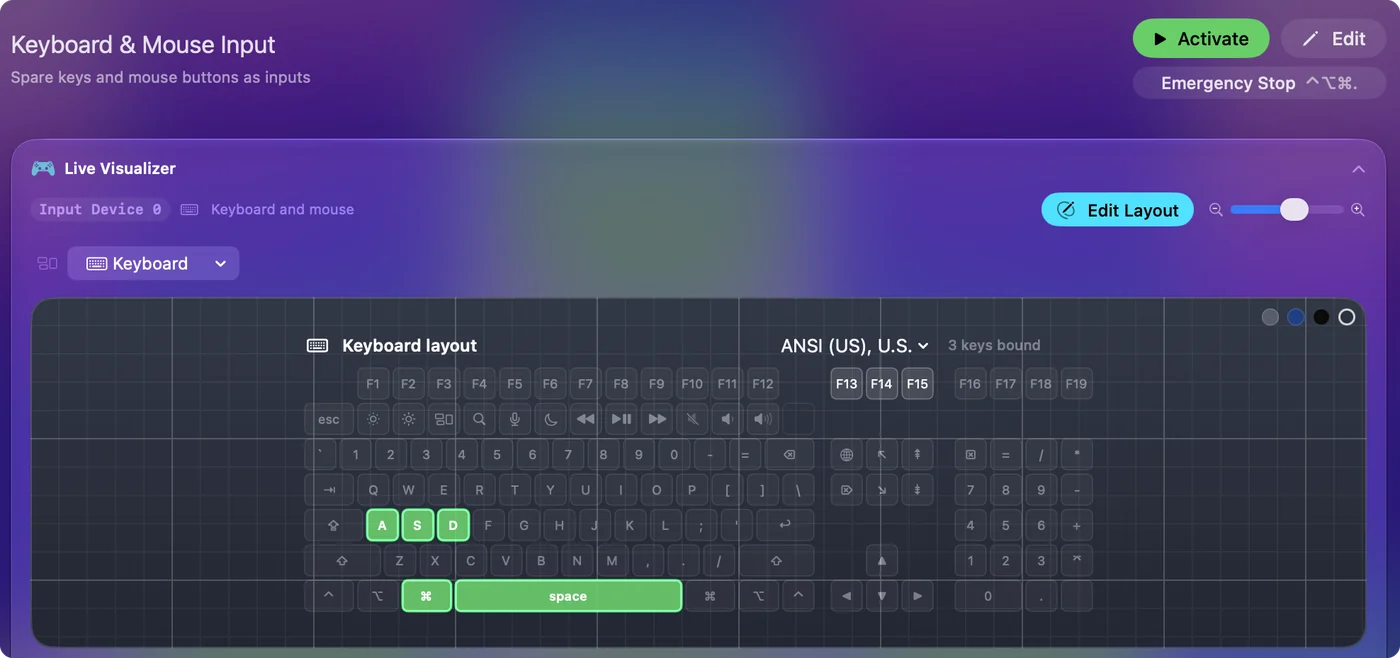
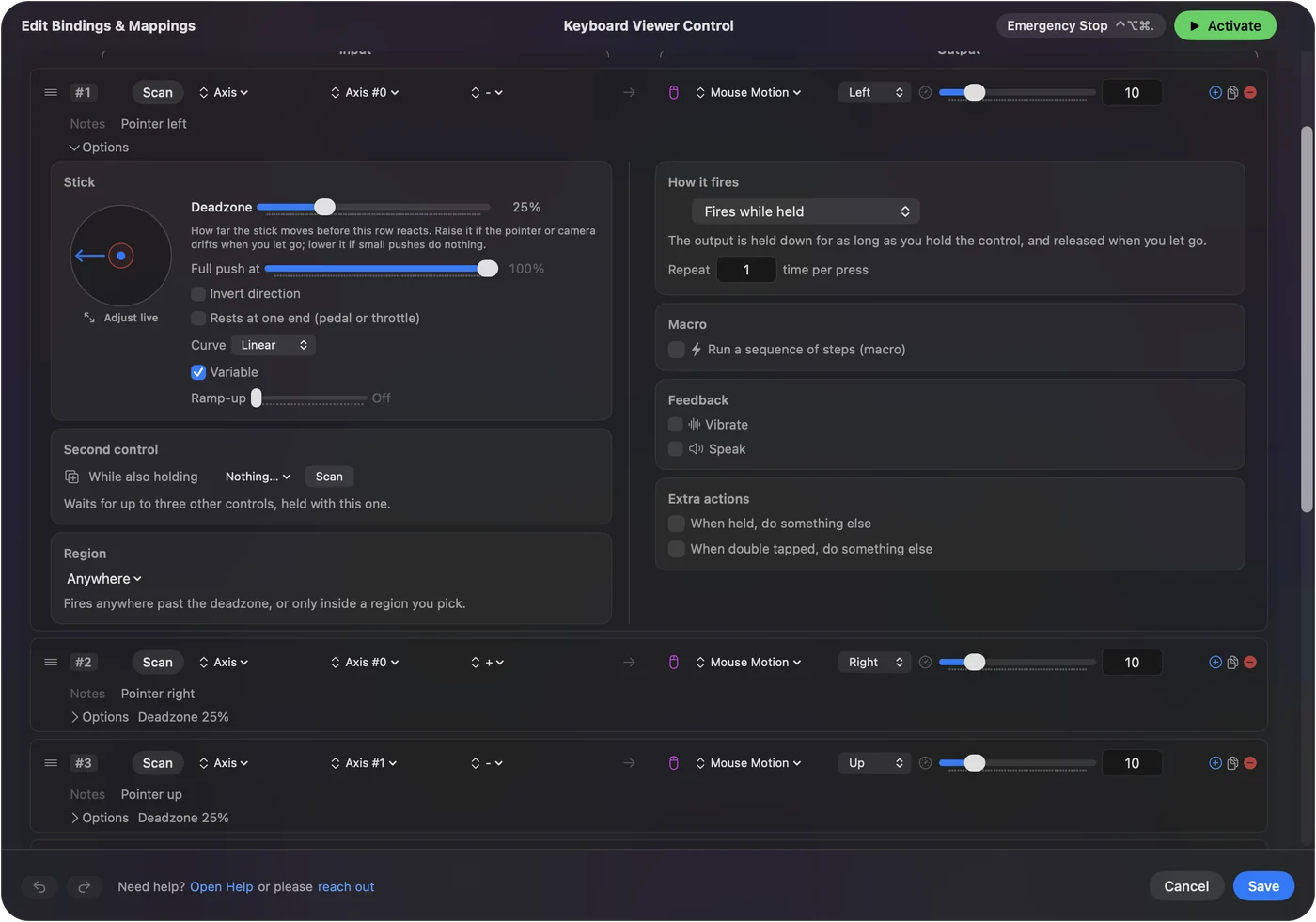
A game controller can move the pointer over the onscreen keyboard and click its keys. InputConfig, free on the Mac App Store, does that with the built-in Desktop Navigation preset, and a button can also type a whole phrase with a Type Text output. Using a Mac without a keyboard walks through it.
The short version
- At login. System Settings, Lock Screen, Accessibility Options, Accessibility Keyboard.
- Turn it on. System Settings, Accessibility, Keyboard, Accessibility Keyboard.
- No clicking. Dwell.
Questions
Does a Mac have an onscreen keyboard?
Yes. It is the Accessibility Keyboard, in System Settings, Accessibility, Keyboard.
How do I get the onscreen keyboard at the Mac login screen?
Open System Settings, Lock Screen, click Accessibility Options, and turn on Accessibility Keyboard. Apple says it applies to every user on the Mac and may ask for an administrator password.
Why is the onscreen keyboard missing at the Mac login screen?
Most often because it was turned on only under Accessibility, Keyboard. The login window has its own switch in System Settings, Lock Screen, Accessibility Options. Turn it on there while you are logged in.
Can I turn on the onscreen keyboard from the login screen?
Not as a lasting setting. That is made in System Settings once you are logged in. Apple says anyone at the login window can use the accessibility shortcuts to switch options on or off for a moment, but its page lists no keys and I have not tested it.
Does the onscreen keyboard show after a restart?
Apple says the Lock Screen options apply at the login window. I have not tested the first screen after a restart on a Mac with FileVault, so check it once before you rely on it, and keep a spare USB keyboard.
How do I type on a Mac if my keyboard is broken?
Turn on the Accessibility Keyboard and click its keys with the mouse or trackpad.
Related
This page in other languages: Bahasa Indonesia, Italiano, 日本語, Polski, Русский, Svenska, Türkçe, Tiếng Việt, 繁體中文
Updated