How to turn off mouse acceleration on a Mac
 InputConfig is completely free on the Mac App Store. You don't have to make an account, there are no subscriptions, and nothing is locked. Optimized for Apple silicon.
On macOS 14 Sonoma and later, open System Settings, click Mouse, click Advanced, and turn Pointer acceleration off. That is all it takes, with no extra app and no Terminal command. Acceleration is on by default: Apple's guide says the pointer moves more quickly for fast mouse movements and more precisely for slow ones.
I make InputConfig, a free Mac app for controllers and other input devices, and this site has free mouse testers.
On this page
Steps
- Connect the mouse, so that Mouse appears in System Settings.
- Open the Apple menu and choose System Settings.
- Click Mouse in the sidebar.
- Click Advanced.
- Turn Pointer acceleration off.
Turn it off
- You: With a mouse connected, open the Apple menu, choose System Settings, click Mouse in the sidebar, then click Advanced.
- macOS: Shows one option, Pointer acceleration.
- Check: Turn it off and move the mouse the same distance slowly and then fast. The pointer should travel about the same distance both times.
The switch is under Advanced in Mouse settings, on macOS 14 and later.
Know what the switch changes
With acceleration on, speed counts: a quick flick carries the pointer farther than a slow push of the same length. With it off, only distance counts, which many people who aim with a mouse prefer. Tracking speed is a separate setting on the same page, under Point & Click, and it still scales the whole thing. Acceleration decides whether speed matters, and Tracking speed decides how far the pointer goes.
If the switch is missing
Climb this ladder, smallest step first:
- Connect a mouse. Apple's guide notes that a mouse must be connected for the Mouse settings to be shown.
- Check the macOS version. Open the Apple menu and choose About This Mac. Apple's guide lists Pointer acceleration for macOS 14 Sonoma and later, and not for macOS 13 Ventura.
- Update macOS if you can. On macOS 13 and earlier, Apple's Mouse settings offer Tracking speed and no acceleration switch.
Other sites give a Terminal command for older versions. I have not tested one on a current Mac, so I do not repeat it here. No mouse connected and an older macOS are the two reasons the switch is not there.
Trackpads have no such switch
Apple's Trackpad settings list Tracking speed, click options and gestures, and no acceleration option. The Pointer acceleration switch belongs to Mouse settings only.
When the pointer is a controller stick
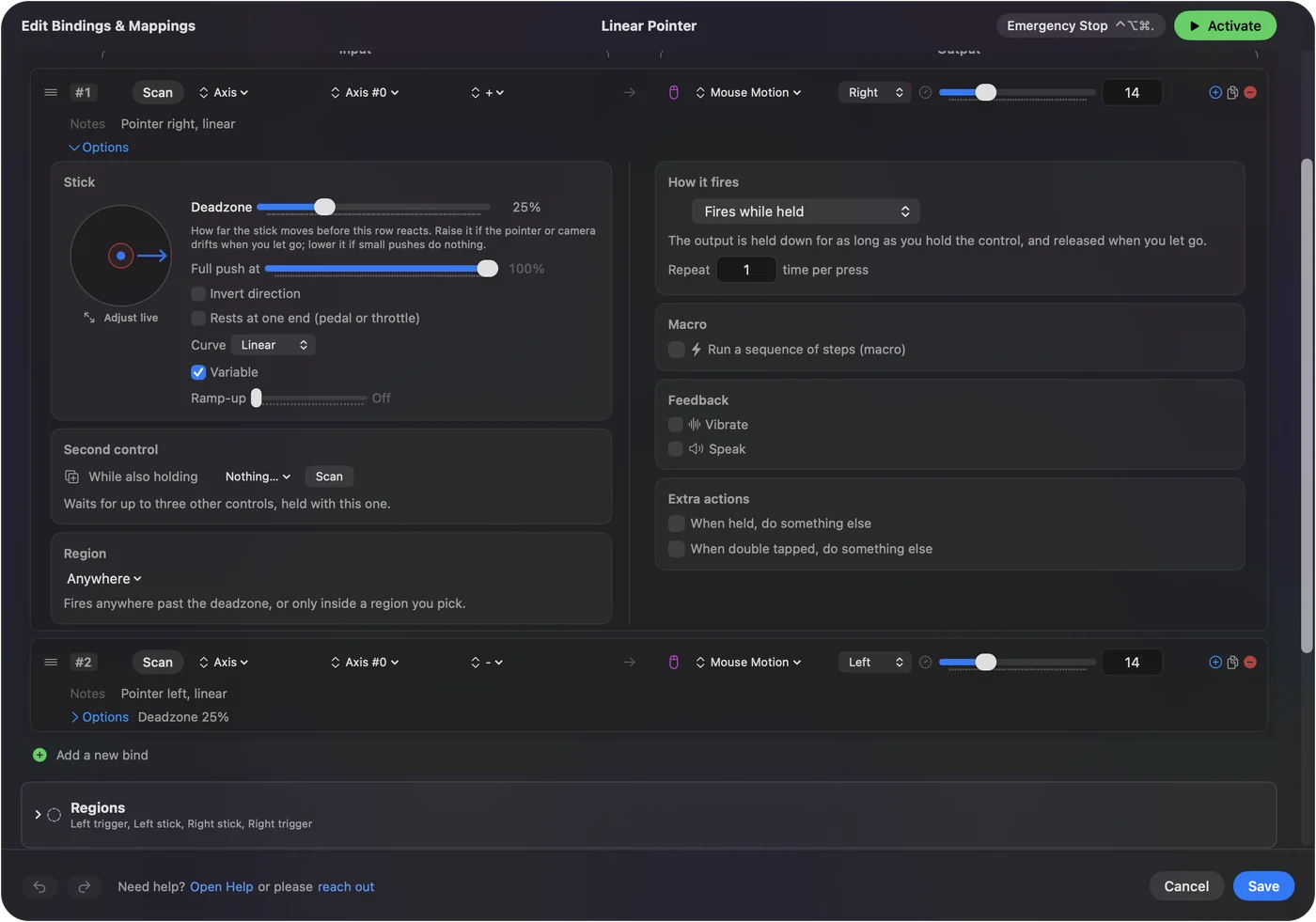
A stick is not a mouse, so this switch is not what shapes it. In InputConfig the pointer row has its own settings:
- Speed. The top speed of the pointer.
- Response curve. Linear, Smooth or Aggressive. Linear is the plain one: pointer speed follows the tilt.
- Ramp-up. The pointer starts slow when the stick leaves the deadzone and reaches full speed over the time you set.
Deadzones and sensitivity covers each one, and how to use a game controller as a mouse has the setup. On a stick, the curve does the job that acceleration does on a mouse.
The short version
- Where. It is in System Settings, Mouse, Advanced, Pointer acceleration.
- Needs. It needs macOS 14 or later, and a mouse connected.
- Trackpad. No switch.
One switch turns mouse acceleration off on a current Mac.
Questions
Does Mac have mouse acceleration like Windows?
Yes, and it is on by default. Apple's guide says the pointer moves more quickly for fast mouse movements and more precisely for slow ones. Windows has its own version under its own name. I have not measured how the two curves compare, so I cannot say they match.
How do I turn off mouse acceleration on a Mac?
On macOS 14 or later, open System Settings, click Mouse, click Advanced, and turn Pointer acceleration off. A mouse has to be connected for Mouse settings to appear.
Why is there no Advanced button in my Mouse settings?
Apple's guide lists the Pointer acceleration option for macOS 14 Sonoma and later, and not for macOS 13 Ventura. If Mouse is missing from System Settings entirely, connect a mouse first.
Can I turn off acceleration for the trackpad?
Apple's Trackpad settings list no acceleration option. The switch is in Mouse settings only.
Can I change the mouse acceleration curve on a Mac?
Not in System Settings. Mouse settings have the Pointer acceleration switch, which is on or off, and Tracking speed, which scales the whole thing. I have not tested apps that reshape the curve. For a game controller used as a pointer, InputConfig has a Response curve of Linear, Smooth or Aggressive.
Related
This page in other languages: Deutsch, Français, 日本語, 繁體中文, 한국어, Русский
Updated