How to keep the mouse cursor inside a game on a Mac, and hide it
 InputConfig is completely free on the Mac App Store. You don't have to make an account, there are no subscriptions, and nothing is locked. Optimized for Apple silicon.
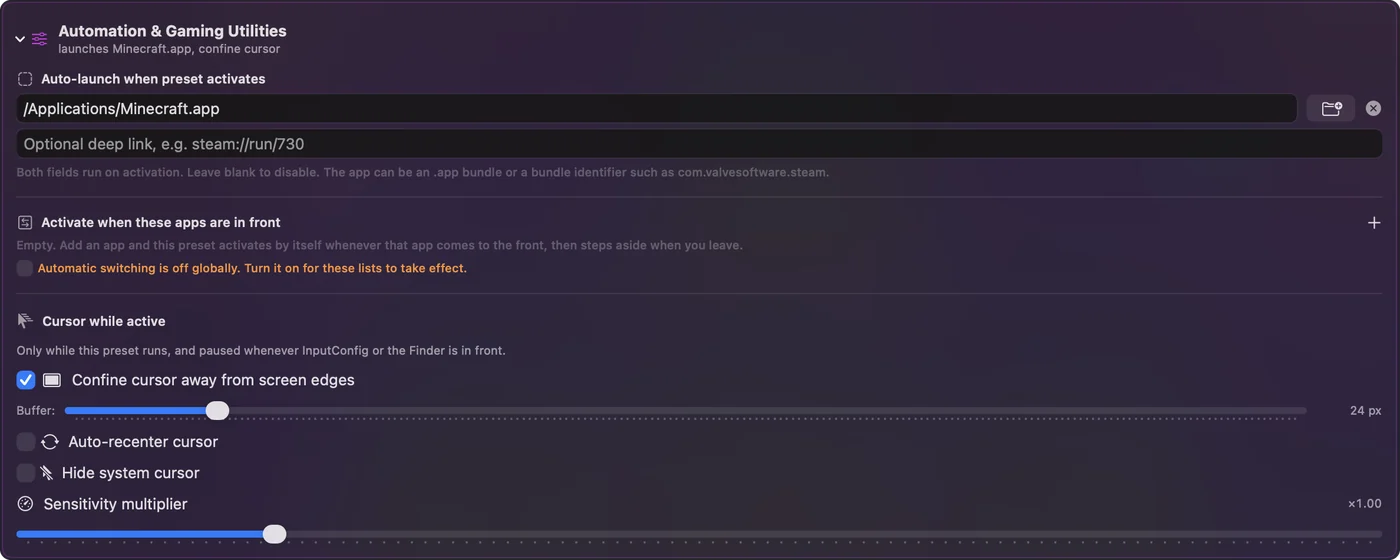
When a controller stick moves the mouse in a game, the pointer can hit the edge of the screen and the camera stops turning, or the cursor shows on top of the game. A preset in InputConfig has three switches for that: Confine cursor, Auto-recenter and Hide cursor. Game presets from the Smart Preset Maker turn on Confine cursor for you and leave the other two off, because most games lock and hide the mouse themselves.
I make InputConfig, a free Mac app that lets you play keyboard and mouse games with a controller.
On this page
Steps
- Open the game's preset in InputConfig and click Edit.
- Expand Automation & Gaming Utilities.
- Turn on Confine cursor away from screen edges.
- Turn on Hide system cursor only if the game shows the cursor, and Auto-recenter cursor only if the camera still stops turning.
- Click Save and start the game.
Turn on the three switches
- You: Click Edit on the preset and expand Automation & Gaming Utilities at the bottom of the editor. Turn on the switches you need.
- InputConfig: Guards the pointer while the preset runs.
- Check: In the game, hold the look stick to one side. The camera keeps turning and no cursor shows.

- Confine cursor. It keeps the pointer a set distance from the edges of the screen, so a stick never pushes it out of a full-screen game.
- Auto-recenter. It moves the pointer back to the middle at an interval, for the rare game that follows the pointer and stops turning at the screen edge. Games that lock the mouse, as most do, do not need it, and it pulls the pointer out of their menus.
- Hide cursor. It hides the pointer while the preset runs. Games hide it themselves while you play and show it in their menus, so game presets leave this off.
Confine is the switch most mouse-look games need, because the game hides the cursor itself while you play.
Keep them out of your other apps
You do not want a hidden, confined pointer on the desktop. List the game under Activate when these apps are in front, and the three switches act only while the game is in front. Without a list, they pause while InputConfig or the Finder is in front.
If the pointer still escapes
Climb this ladder, smallest step first:
- Check the preset is running. The switches do nothing until you click Activate.
- Check which app is in front. With an app list, they act only in those apps.
- Turn on Auto-recenter, if you must. The rare game that follows the pointer stops turning at the screen edge without it.
- Use full screen. A windowed game leaves more room for the pointer to wander.
What it cannot do
These switches manage the Mac's pointer. They do not change a game's own cursor drawn inside the game. They apply while the preset runs, and they are off the moment it stops or the emergency stop fires. Starting such a preset by hand first says so and lists every way to stop it. Check Don't show this again to skip that for the preset.
The short version
- Camera stops at the edge. Confine cursor, and Auto-recenter only if needed.
- Cursor on top of the game. Hide cursor, for a game that does not hide it.
- Only in the game. Add the game to the app list.
Questions
Why does my camera stop turning when I use a controller as a mouse?
The pointer reached the edge of the screen, so the game gets no more movement. Turn on Confine cursor in the preset's Automation section in InputConfig, and Auto-recenter cursor only for the rare game that follows the pointer.
How do I hide the mouse cursor in a Mac game?
Most games hide it themselves while you play. If one does not, turn on Hide system cursor in the preset's Automation section. List the game under Activate when these apps are in front so the pointer is hidden only there.
Do I have to set this up for every game?
Game presets made by the Smart Preset Maker turn on Confine cursor for you and leave recenter and hide off, since the game locks and hides the mouse itself and needs the pointer in its menus. For a preset you built yourself, turn them on once.
Related
This page in other languages: Español, Bahasa Indonesia, 한국어, Русский, 繁體中文
Updated