Zed from a game controller
 The Zed layout is built into InputConfig, free on the Mac App Store. You don't have to make an account, there are no subscriptions, and nothing is locked. Optimized for Apple silicon.
On a Mac: Zed reads its default Mac keymap from this layout. If you switched Zed to another base keymap, change the output of any row that no longer matches.
Yes, Zed works from a game controller on a Mac, and this layout is built around finding things: Goto Anything on the big button, the command palette beside it, a cursor at the next match, and a comment toggle. Every key is one Zed ships with.
The layout, control by control
How the layout thinks
- Find. Goto Anything (Command P) on the bottom face button, the command palette (Command Shift P) on the right, Find on the left bumper.
- Edit. Add a cursor at the next match (Command D) on the left face button, toggle comment (Command Slash) on the top, Save on the right bumper.
- Tabs and files. Previous and next tab on the D-pad (Command Shift and the brackets), close tab on Back, Share or View, a new file on Start.
- Point and scroll. The left stick is the pointer, the right stick scrolls, the right trigger clicks.
Tune it
- Project panel. Command B shows and hides it. Put it on a stick click.
- File tree focus. Put Command Shift E on the other stick click.
- The agent panel. Find its key in Zed's command palette, which lists every action's shortcut.
- Vim mode. It works alongside all of this.
Goto Anything on the big button gets you to any file in two presses and a few words of dictation.
Get it in two clicks
- Open InputConfig and click Smart Preset Maker on the welcome screen.
- Search for Zed and pick it. The layout is created as a preset in your sidebar, named and ready.
- Press Activate. Every row can be changed afterwards: the editor's Scan button rebinds any control the moment you touch it.
Every binding, as a table
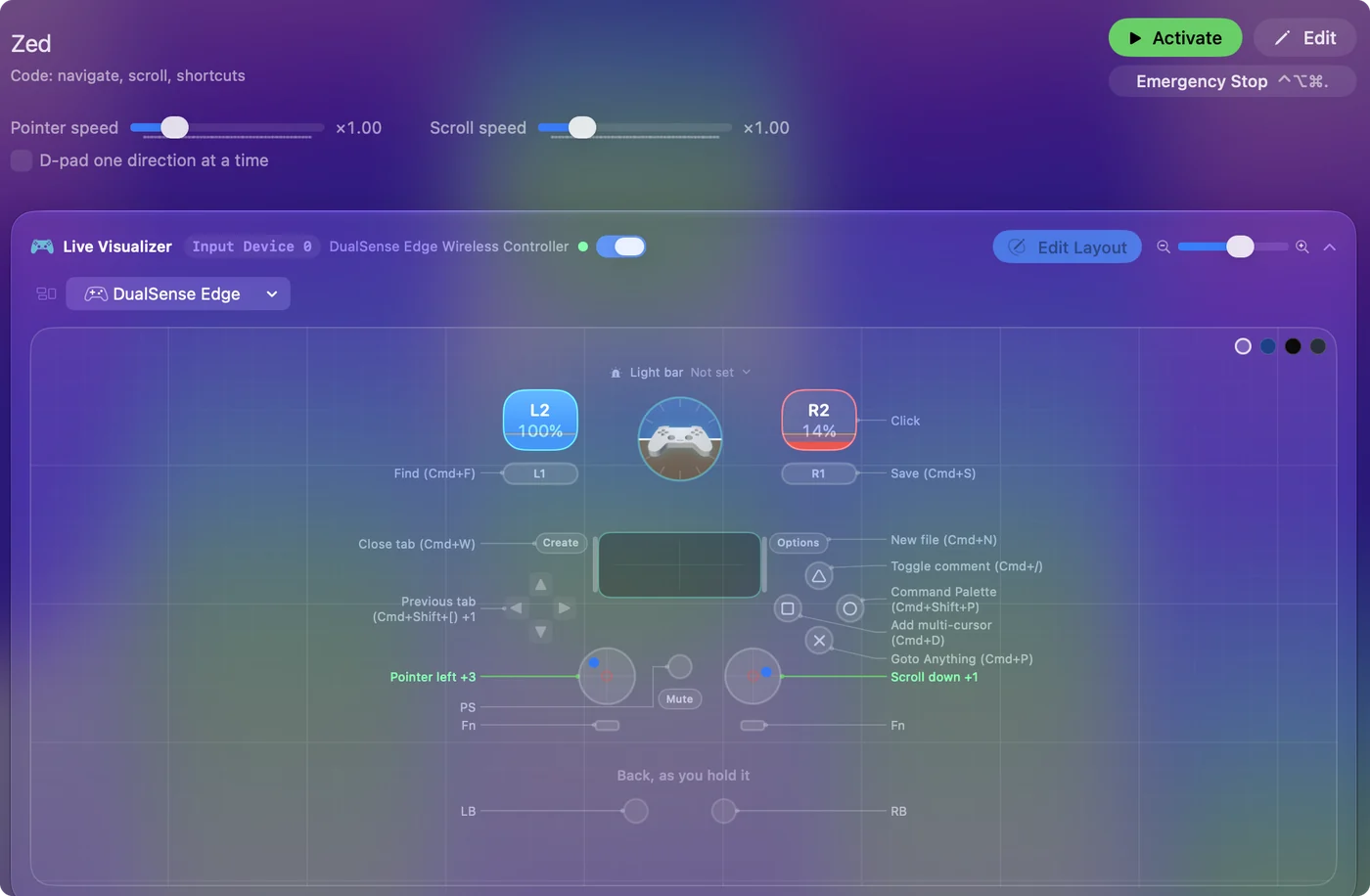
| Controller | Sends | What it does |
|---|---|---|
| Left stick left | Mouse motion left (speed 16) | Pointer left |
| Left stick right | Mouse motion right (speed 16) | Pointer right |
| Left stick up | Mouse motion up (speed 16) | Pointer up |
| Left stick down | Mouse motion down (speed 16) | Pointer down |
| Right stick down | Scroll down | Scroll down |
| Right stick up | Scroll up | Scroll up |
| Right trigger | Left click | Click |
| A / Cross | Command (Left), P | Goto Anything (Cmd+P) |
| B / Circle | Command (Left), Shift (Left), P | Command Palette (Cmd+Shift+P) |
| X / Square | Command (Left), D | Add multi-cursor (Cmd+D) |
| Y / Triangle | Command (Left), / | Toggle comment (Cmd+/) |
| LB / L1 | Command (Left), F | Find (Cmd+F) |
| RB / R1 | Command (Left), S | Save (Cmd+S) |
| Back / Share / Select | Command (Left), W | Close tab (Cmd+W) |
| Start / Options | Command (Left), N | New file (Cmd+N) |
| D-pad left | Command (Left), Shift (Left), [ | Previous tab (Cmd+Shift+[) |
| D-pad right | Command (Left), Shift (Left), ] | Next tab (Cmd+Shift+]) |
Names follow the editor's Xbox / PlayStation pair, and a Switch pad fires by position.
Questions
Does it work if I use Zed's VS Code keymap?
Mostly. Check Goto Anything and the tab rows, and change the output of any that differ.
Related
Updated