Cursor from a game controller
 The Cursor layout is built into InputConfig, free on the Mac App Store. You don't have to make an account, there are no subscriptions, and nothing is locked. Optimized for Apple silicon.
On a Mac: Native on the Mac. Cursor keeps VS Code's Mac shortcuts, so the rows match, and the preset can open Cursor from your Applications folder when it activates.
Yes, the Cursor editor works from a game controller on a Mac, with the VS Code layout unchanged, because Cursor keeps VS Code's keys. Save, find, the command palette and the sidebar sit on the face buttons. Reading a codebase and reviewing diffs from a chair is what this is for.
The layout, control by control
How the layout thinks
- Common commands. Save on the bottom face button, find on the right, the command palette on the left, the sidebar on the top.
- Undo and redo. On the left and right bumpers.
- Move around. Previous and next editor on D-pad left and right, a line up and down on D-pad up and down.
- Point and scroll. The left stick is the pointer, the right stick scrolls, the right trigger clicks, Escape is on Start.
Tune it for Cursor's AI
- Chat and composer. Put Command L and Command I on the stick clicks.
- Accept a completion. Put Tab behind a chord.
- Speak a prompt. A Start Dictation row puts your words straight into the chat box.
Two stick clicks and a dictation row turn this into a way to talk to the AI from across the room.
Get it in two clicks
- Open InputConfig and click Smart Preset Maker on the welcome screen.
- Search for Cursor and pick it. The layout is created as a preset in your sidebar, named and ready.
- Press Activate. Every row can be changed afterwards: the editor's Scan button rebinds any control the moment you touch it.
Every binding, as a table
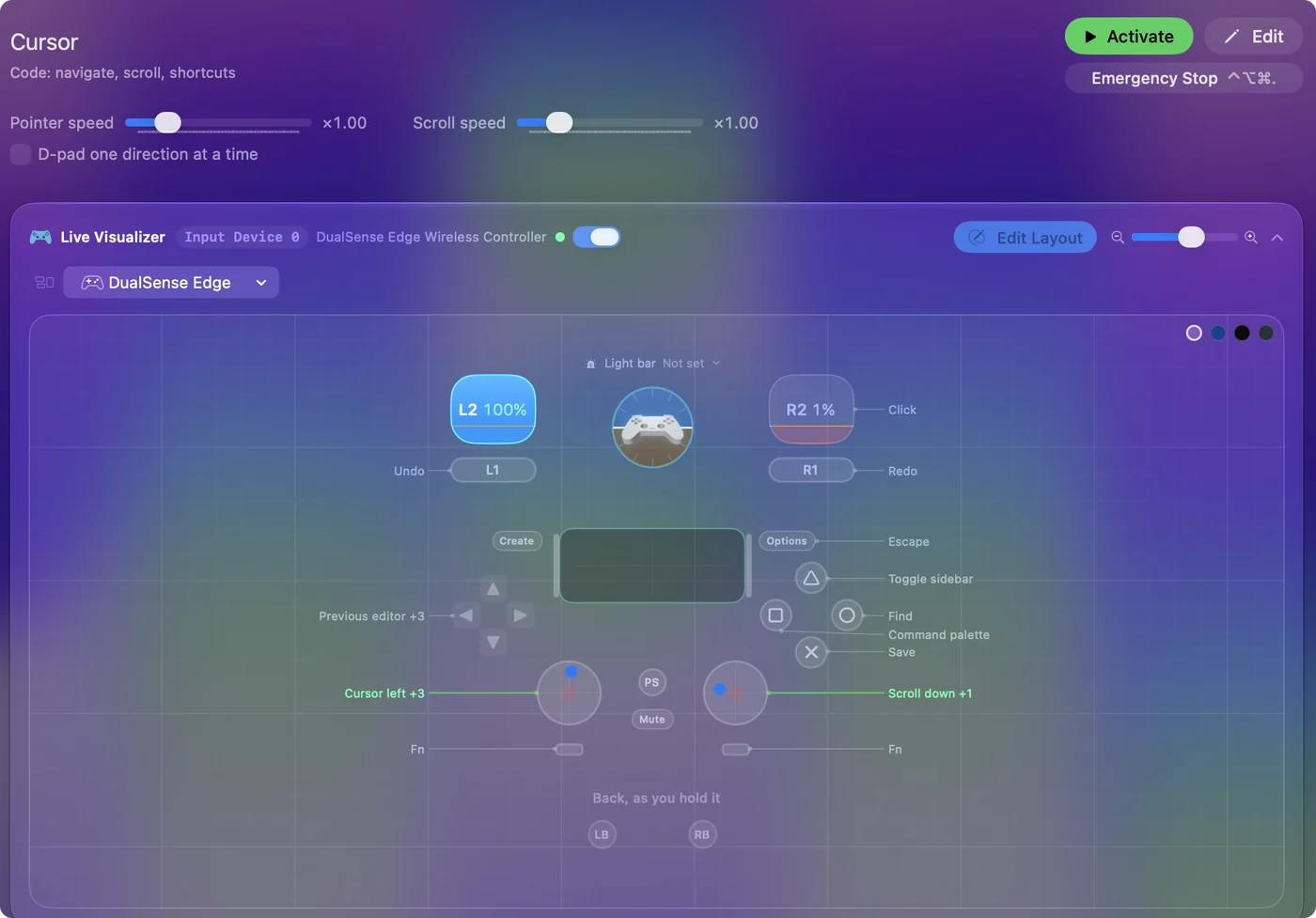
| Controller | Sends | What it does |
|---|---|---|
| Left stick left | Mouse motion left (speed 16) | Cursor left |
| Left stick right | Mouse motion right (speed 16) | Cursor right |
| Left stick up | Mouse motion up (speed 16) | Cursor up |
| Left stick down | Mouse motion down (speed 16) | Cursor down |
| Right stick down | Scroll down | Scroll down |
| Right stick up | Scroll up | Scroll up |
| Right trigger | Left click | Click |
| A / Cross | Command (Left), S | Save |
| B / Circle | Command (Left), F | Find |
| X / Square | Command (Left), Shift (Left), P | Command palette |
| Y / Triangle | Command (Left), B | Toggle sidebar |
| D-pad left | Command (Left), Alt / Option (Left), Left | Previous editor |
| D-pad right | Command (Left), Alt / Option (Left), Right | Next editor |
| D-pad up | Up | Line up |
| D-pad down | Down | Line down |
| LB / L1 | Command (Left), Z | Undo |
| RB / R1 | Command (Left), Shift (Left), Z | Redo |
| Start / Options | Escape | Escape |
Names follow the editor's Xbox / PlayStation pair, and a Switch pad fires by position.
Questions
Is this the VS Code layout?
Yes. Cursor keeps VS Code's keys, so the rows are the same.
Related
Updated