Mac keyboard tester
 InputConfig is completely free on the Mac App Store.
Press any key on a MacBook or an Apple keyboard such as the Magic Keyboard and it lights up on the Mac layout below, with command, option, control and shift on both sides. You get each key's code and the number InputConfig uses for it. I also marked the keys macOS keeps for itself, so you don't mistake a key that stays dark for a broken one.
Test a MacBook keyboard online
This page tests the built-in keyboard on a MacBook, a Magic Keyboard on Bluetooth or a cable, and any other keyboard plugged into a Mac. Open it in the browser you already use, click the page once so it hears the keys, and press them. A key that never lights is one of two things: a key macOS answers before the page can, or a key that has really failed. The keys macOS keeps sorts the first kind from the second.
Test a Mac keyboard in this order
- Click the page once, so it receives the keyboard.
- Press each row from left to right, from the number row down to the arrows.
- Hold fn and press F1 to F12. Without fn they run brightness, volume and media, which never reach a page.
- Press left and right command, option, control and shift one at a time. Each side is its own key.
- On a Magic Keyboard with a numeric keypad, turn on Keys of a full-size Mac keyboard for F13 to F19, the keypad, home, end and the page keys.
The keys macOS keeps
- The top row. Brightness, Mission Control, Spotlight, dictation, media and volume act before a page sees anything. Hold fn to send F1 to F12 instead.
- fn and Globe. No browser reports this key, so it is drawn dashed and left out of the count.
- Caps Lock. Browsers on a Mac report it in different ways, some only when the light turns on and off, so the tester flashes it on each press instead of keeping it lit.
- Command shortcuts. Command Q, Command W, Command Tab and Command Space belong to macOS and the browser. Press command on its own.
- Keys released while command is held. A Mac sends a page no release for them, so the tester lets go of them when command comes up.
- Touch ID and the power button. Not keys a page can read.
None of these is a fault. On a Mac, a dark key in this list means macOS answered first, not that the key is dead.
If a key really does nothing
Climb this ladder, smallest step first:
- Click the page and press it again. The page only hears the keyboard while it is the front window.
- Try it in TextEdit. If the key types there, the keyboard is fine and the page or the browser is the limit.
- Use the Keyboard Viewer. In System Settings, Keyboard, Text Input, click Edit and turn on Show Input menu in menu bar, then choose Show Keyboard Viewer from that menu. The on-screen keyboard lights each key macOS receives.
- Reconnect a Magic Keyboard. Plug it in with its cable, which pairs it again and charges it.
- Plug in a second keyboard. If the same key works on it, the key on the first keyboard has failed.
What a web page cannot test
Some presses never reach a web page, on any keyboard. On a Mac that is the fn or Globe key, the brightness, volume and media keys on the top row unless fn is held, and the shortcuts macOS and the browser keep, such as Command Q, Command W and Command Tab. On a PC it is the Windows key in many browsers, Alt F4 and Ctrl Alt Delete. The page also cannot measure how far a key travels or how hard it was pressed. A key that stays gray only in this list is not broken: test it on its own, or in a second app.
See every key light up in the app
The Live Visualizer in InputConfig has a Keyboard template that draws your keyboard in its own shape, labels every key as your layout types it and lights each key as you press it. It works with no preset running, so it is a second tester that lives on your Mac, and it is the one to use when a key needs a closer look. Use the page first, then the app to confirm. A key that lights in the app and not on this page was answered by the browser, not dropped by the keyboard.
Give a spare key a job
F13 to F19 on a full-size Magic Keyboard, the keypad, or keys you never use can do real work. InputConfig, the free Mac app I make, can have one open an app, run a macro, start dictation or type a phrase, and it can read the fn key, which no web page sees. It listens to the keyboard and does not block or remap the key itself, so the cleanest keys to use are the ones that type nothing. Test it here, then give it a job there.
How this fits with InputConfig
These pages test and look up keys in the browser. InputConfig works one step later: it can make any key, F13 to F19 and keys on gaming, ISO and Japanese keyboards included, send a shortcut, a click, typed text or a macro, in every app or only in one.
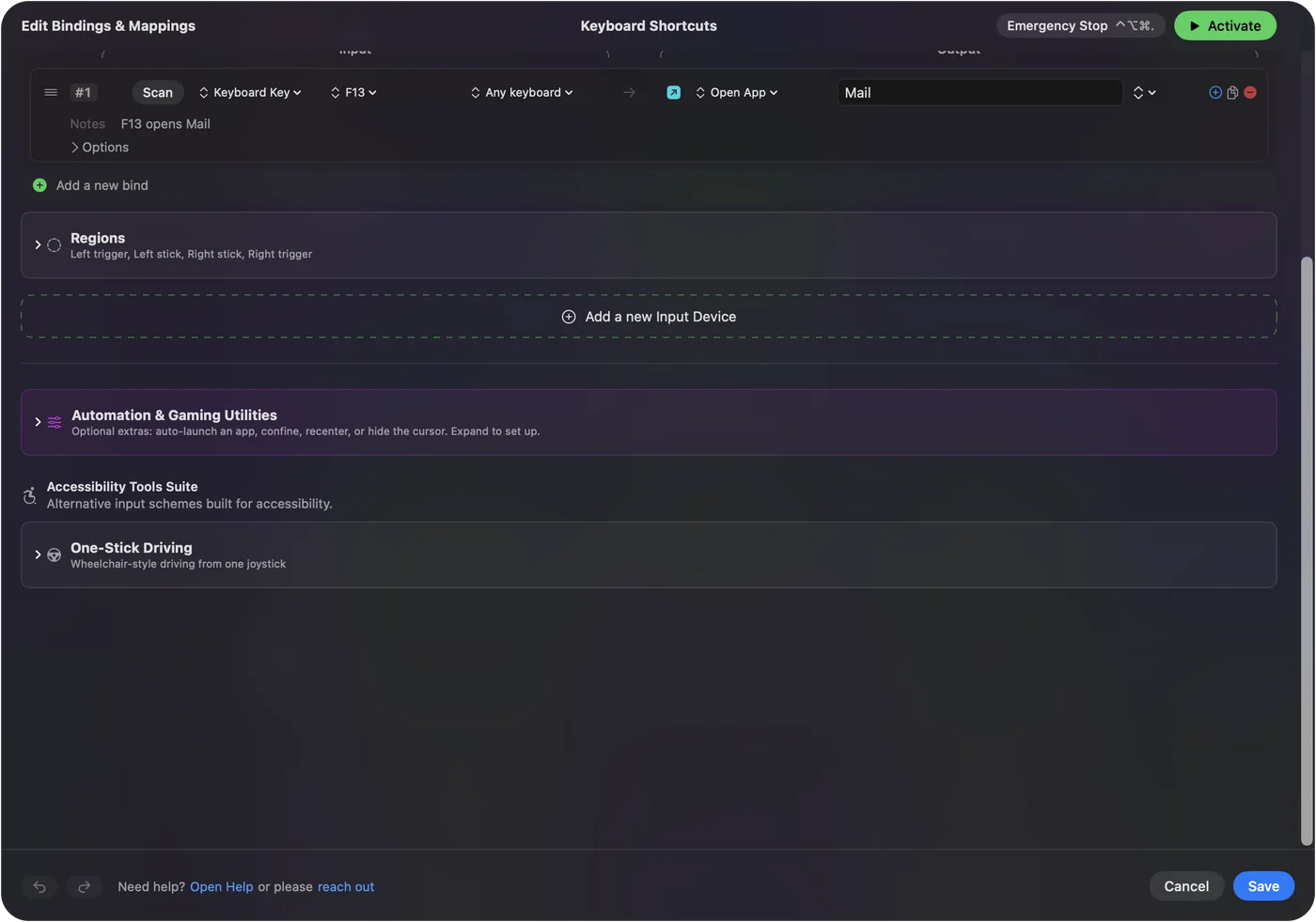
Keyboard and mouse as input shows it step by step.
More keyboard tests
Questions
How do I test an Apple keyboard?
Open this page, click it once and press every key. It works for a MacBook keyboard, a Magic Keyboard on Bluetooth or a cable, and any other keyboard plugged into a Mac. Hold fn to test F1 to F12, because fn and the Globe key never reach a web page.
How do I test my MacBook keyboard?
Open this page, click it once and press every key. Each key turns green once it registers. The top row needs fn held down, because macOS keeps brightness, volume and media for itself.
Why does the fn key not light up?
No browser reports the fn or Globe key to a web page, on any Mac. InputConfig can read it as an input, which is one way to check that it works.
How do I test the left and right command keys?
Press each one on its own. The tester draws both, and each side lights by itself because the browser reports them as two different keys.
Can I test Touch ID or the power button?
No. A web page sees key presses only, and Touch ID and the power button are handled by macOS.
Is there a way to test every key inside the app?
Yes. In InputConfig, the Live Visualizer's Keyboard template draws your keyboard, labels every key as your layout types it and lights each key as you press it. It works with no preset running.
Related
Updated