Mac keyboard shortcuts
 InputConfig is completely free on the Mac App Store.
Type what you want to do, like screenshot or force quit, and the list narrows as you type. The symbols are explained right under the search box.
⌘ Command ⌥ Option ⌃ Control ⇧ Shift fn Function or Globe
Everyday
| Copy | ⌘ C |
|---|---|
| Cut | ⌘ X |
| Paste | ⌘ V |
| Paste and match style | ⌥ ⇧ ⌘ V |
| Undo | ⌘ Z |
| Redo | ⇧ ⌘ Z |
| Select all | ⌘ A |
| Find | ⌘ F |
| Find the next match | ⌘ G |
| Save | ⌘ S |
| ⌘ P | |
| Open | ⌘ O |
| New window or document | ⌘ N |
| Close the window | ⌘ W |
| Quit the app | ⌘ Q |
| Hide the app | ⌘ H |
| Hide every other app | ⌥ ⌘ H |
| Minimize the window | ⌘ M |
| Open the app's settings | ⌘ , |
Apps and windows
| Switch apps | ⌘ Tab |
|---|---|
| Switch windows of the same app | ⌘ ` |
| Force quit an app | ⌥ ⌘ Esc |
| Spotlight search | ⌘ Space |
| Full screen | fn F, or ⌃ ⌘ F |
| Mission Control | ⌃ ↑ |
| All windows of the current app | ⌃ ↓ |
| Move to the desktop space on the left or right | ⌃ ← or ⌃ → |
| Show or hide the Dock | ⌥ ⌘ D |
| Emoji and symbols | fn E, or ⌃ ⌘ Space |
Screenshots
| Screenshot of the whole screen | ⇧ ⌘ 3 |
|---|---|
| Screenshot of an area | ⇧ ⌘ 4 |
| Screenshot of one window | ⇧ ⌘ 4, then Space |
| Screenshot and recording tools | ⇧ ⌘ 5 |
| Copy a screenshot instead of saving it | Add ⌃ to any of the above |
Finder
| Get info | ⌘ I |
|---|---|
| Quick Look | Space |
| New folder | ⇧ ⌘ N |
| Move to the Trash | ⌘ Delete |
| Empty the Trash | ⇧ ⌘ Delete |
| Show hidden files | ⇧ ⌘ . |
| Go to a folder by path | ⇧ ⌘ G |
| Open Applications | ⇧ ⌘ A |
| Open Downloads | ⌥ ⌘ L |
| Open the Desktop folder | ⇧ ⌘ D |
| Open the home folder | ⇧ ⌘ H |
| Open Utilities | ⇧ ⌘ U |
| Connect to a server | ⌘ K |
| Duplicate | ⌘ D |
| Make an alias | ⌃ ⌘ A |
| Rename | Return |
| Open the selected item | ⌘ ↓ |
| Go up one folder | ⌘ ↑ |
| Move a copied file instead of copying it | ⌥ ⌘ V |
Text
| Delete the word before the cursor | ⌥ Delete |
|---|---|
| Delete forward | fn Delete |
| Delete to the start of the line | ⌘ Delete |
| Jump to the start or end of the line | ⌘ ← or ⌘ → |
| Jump to the start or end of the document | ⌘ ↑ or ⌘ ↓ |
| Jump one word | ⌥ ← or ⌥ → |
| Select while moving | Add ⇧ to any move |
| Bold, italic, underline | ⌘ B, ⌘ I, ⌘ U |
| Start or end of the line, Emacs style | ⌃ A or ⌃ E |
| Show the definition of a word | ⌃ ⌘ D |
Browser
| New tab | ⌘ T |
|---|---|
| Reopen the last closed tab | ⇧ ⌘ T |
| Go to the address bar | ⌘ L |
| Reload | ⌘ R |
| Next or previous tab | ⌃ Tab or ⌃ ⇧ Tab |
| Zoom in, out, reset | ⌘ +, ⌘ -, ⌘ 0 |
| Back or forward | ⌘ [ or ⌘ ] |
System
| Lock the screen | ⌃ ⌘ Q |
|---|---|
| Log out | ⇧ ⌘ Q |
| Accessibility shortcuts panel | ⌥ ⌘ F5 |
| Turn VoiceOver on or off | ⌘ F5 |
| Show the character viewer | fn E |
| Switch keyboard input source | ⌃ Space |
Special characters
| © | ⌥ G |
|---|---|
| ® | ⌥ R |
| ™ | ⌥ 2 |
| • | ⌥ 8 |
| ° | ⌥ ⇧ 8 |
| … | ⌥ ; |
| € | ⌥ ⇧ 2 |
| ¢ | ⌥ 4 |
| £ | ⌥ 3 |
| é and other accents | ⌥ E, then the letter |
| ñ | ⌥ N, then N |
| Apple logo | ⌥ ⇧ K |
| ÷ | ⌥ / |
| ≠ | ⌥ = |
| ± | ⌥ ⇧ = |
No shortcut matches. Try a shorter word.
Make a shortcut of your own
macOS lets you give a menu item its own shortcut. Open System Settings, Keyboard, Keyboard Shortcuts, then App Shortcuts, click the plus button, pick the app and type the menu item's exact name.
If a shortcut is hard to press, map it to one key, a spare mouse button or a controller button instead. InputConfig does that for free, and the mapping can apply in one app only. The per-app shortcuts page shows how.
If a shortcut does nothing
- Check the app. Many shortcuts belong to the app in front, so the same keys can do different things in different apps.
- Check for a clash. In System Settings, Keyboard, Keyboard Shortcuts, a yellow warning marks two actions on the same keys.
- Check the keys. The Mac keyboard tester shows whether each modifier key registers.
How this fits with InputConfig
These pages test and look up keys in the browser. InputConfig works one step later: it can make any key, F13 to F19 and keys on gaming, ISO and Japanese keyboards included, send a shortcut, a click, typed text or a macro, in every app or only in one.
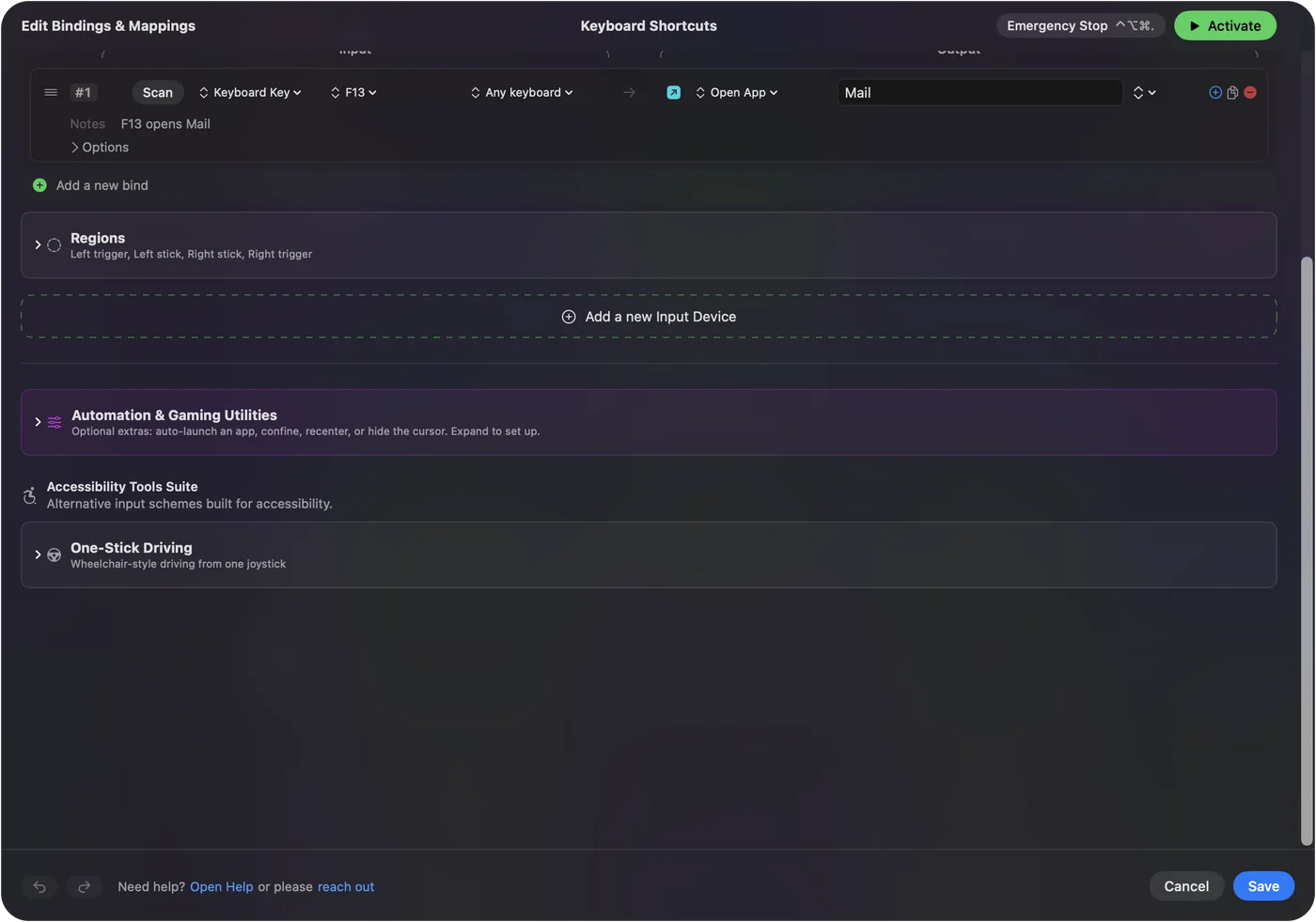
Keyboard and mouse as input shows it step by step.
More keyboard tests
Questions
What do the Mac shortcut symbols mean?
⌘ is Command, ⌥ is Option, ⌃ is Control and ⇧ is Shift. fn is the Function key, which shows a globe on newer keyboards.
How do I take a screenshot on a Mac?
Press Shift Command 3 for the whole screen, Shift Command 4 for an area, or Shift Command 5 for the screenshot and recording tools.
How do I force quit on a Mac?
Press Option Command Esc, pick the app and click Force Quit.
How do I make my own shortcut?
For a menu item, open System Settings, Keyboard, Keyboard Shortcuts, App Shortcuts. To press a shortcut from a mouse button, a controller or a single key, InputConfig can map it for you.
Related
Updated