Dead pixel test
 InputConfig is completely free on the Mac App Store.
Press Start and the whole screen turns one color. Click to move through black, white, red, green and blue, and look for any dot that doesn't match.
Or start on one color:
Click, space or the right arrow: next color. Left arrow: back. Esc: leave.
What each color shows
- Black. Stuck pixels glow red, green, blue or white. In a dark room, pale patches at the edges are backlight bleed.
- White. Dead pixels show as black dots. Uneven tint and dirt behind the glass show here too.
- Red, green and blue. Each one lights a single part of every pixel. A dark dot on one of them means that part of the pixel is dead.
- Gray. Shadows, bands and faint ghost images are easiest to see on flat gray.
A real pixel fault stays in the same spot on every color. A speck that moves when you wipe it is dust.
If you find one
Take a photo and note where it is. Makers and stores have their own rules on how many faulty pixels count as a defect, so check the warranty or return terms for your display. I have not tested the apps that claim to fix a stuck pixel by flashing colors, so I cannot say whether they work.
How this fits with InputConfig
InputConfig does not test screens, so these pages fill that gap. Where the app meets the screen: screen regions turn parts of the display, such as its corners, into buttons that press a key or a shortcut while the pointer is inside them.
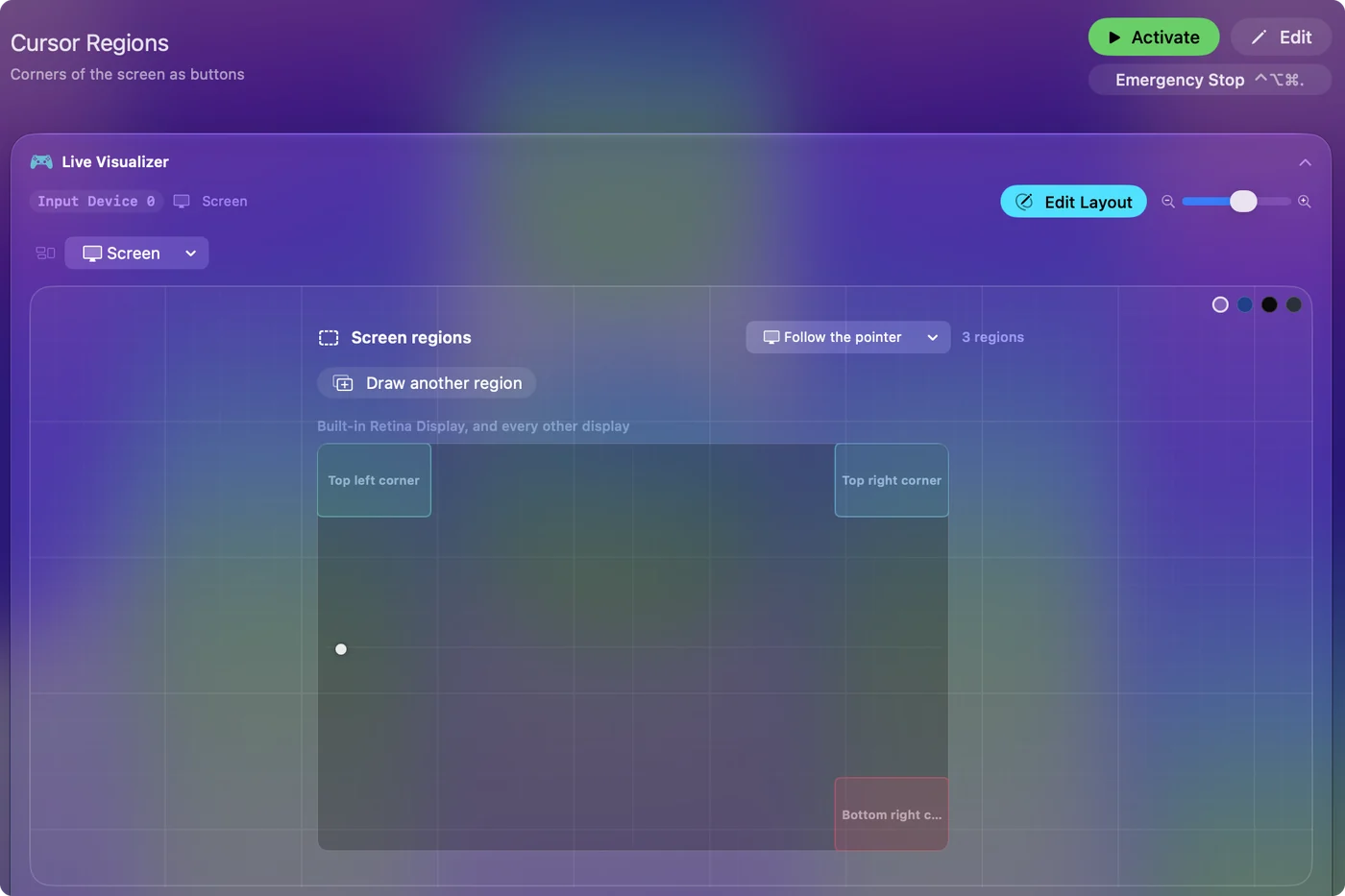
Cursor and stick regions shows it step by step.
More screen tests
Questions
How do I check for dead pixels?
Start the test and look over the whole screen on each color. A dead pixel stays black on every color. A stuck pixel stays red, green, blue or white when the rest of the screen changes.
What is the difference between a dead and a stuck pixel?
A dead pixel is off and looks black on a white screen. A stuck pixel is on and shows one color, which is easiest to see on a black screen.
How do I check for backlight bleed?
Use the black screen in a dark room with the brightness up. Lighter patches along the edges or in the corners are backlight bleed.
How do I leave the full-screen test?
Press Esc. Click or press the space bar or the right arrow to move to the next color.
Related
Updated