How to type a saved phrase with one key on a Mac
 InputConfig is completely free on the Mac App Store. You don't have to make an account, there are no subscriptions, and nothing is locked. Optimized for Apple silicon.
A Mac has two ways to do this. Text Replacements, built into macOS, swaps a short code you type for a longer phrase. To type the phrase from a single press, with no code to remember, use InputConfig: its Type Text output types a saved phrase from a spare key, a mouse side button, a controller button or a MIDI pad.
I make InputConfig, a free Mac app. One key for an email address or a reply you type every day saves a lot of typing.
On this page
Steps
- Open a preset in InputConfig and click Add a new bind.
- Press Scan and press a spare key or button, such as F13.
- Set the output to Type Text.
- Type the phrase in the field.
- Click Save and Activate, then press the key in any text field.
Try Text Replacements first
- You: Open System Settings, Keyboard, and click Text Replacements. Add a short code under Replace and the full phrase under With.
- macOS: Swaps the code for the phrase when you type it and press Space.
- Check: Type the code in Notes.
It is built in and syncs through iCloud. Its limits: you still type the code, and some apps do not expand it.
Put the phrase on one key
- You: In InputConfig, open a preset and click Add a new bind. Press Scan and press the key or button to use. Set the output to Type Text and type the phrase in the field.
- InputConfig: Types the whole phrase each time you press it, into whatever app is in front.
- Check: Click Save and Activate, click into a text field, and press the key.
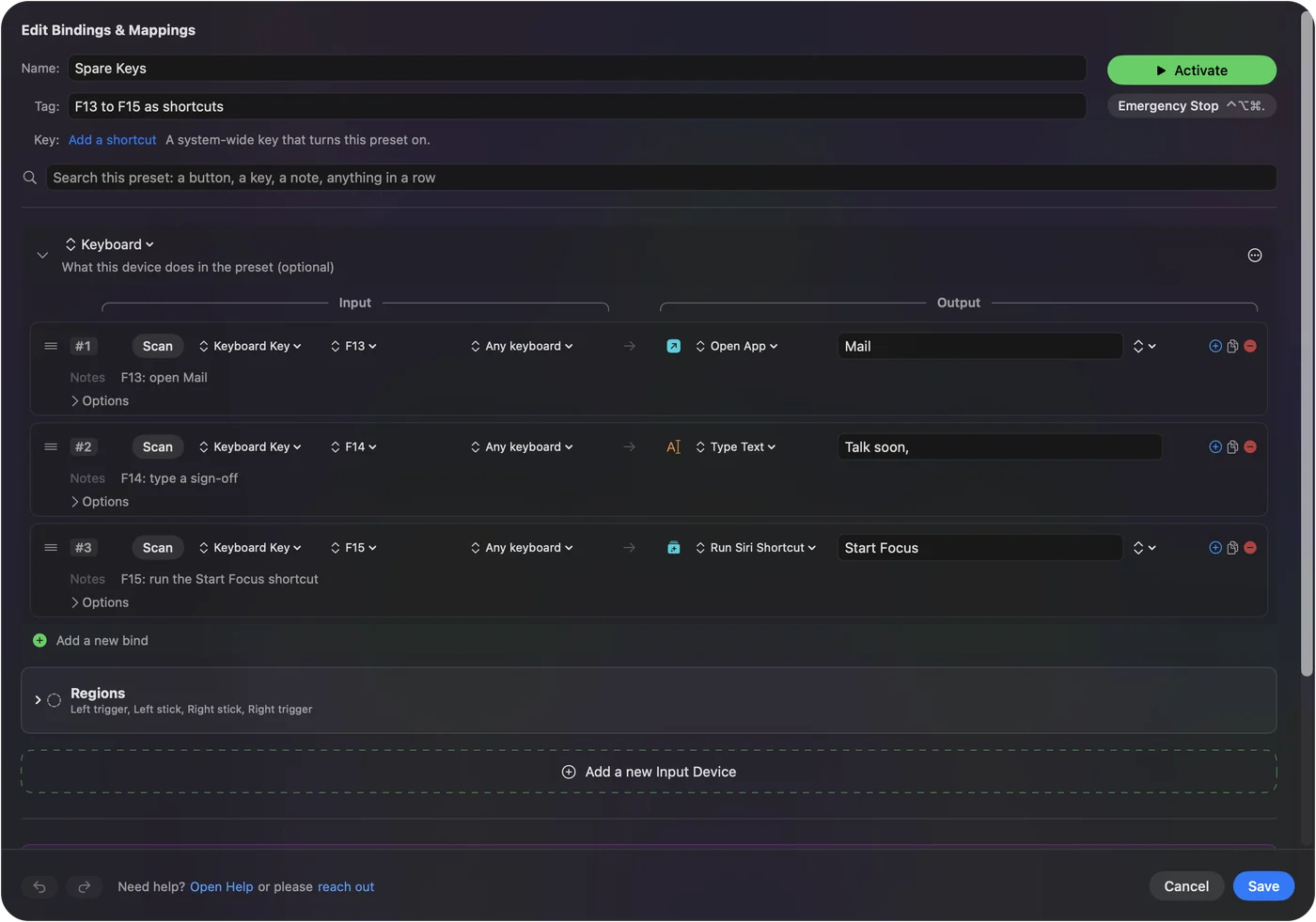
Pick a key that types nothing on its own
InputConfig listens to the keyboard and does not block a key, so a letter key would type its own letter as well as the phrase. Use something with no job of its own:
- F13 to F19. On a full-size keyboard these do nothing until you give them a job. See F13 to F19 on a Mac.
- A mouse side button. See mouse side buttons.
- A controller button, a foot pedal or a MIDI pad. Any of them can type.
- A second keyboard. A cheap numpad makes a row of phrase keys. See the macro pad guide.
What it can type
- Anything you can paste. An address, a phone number, a sign-off, a line of code, an emoji.
- Text and keys from one press. Macro steps are keys and mouse buttons, so for a phrase and a key such as Return, put Type Text on the row as a stacked output beside the macro.
- The same phrase again and again. See auto typer for Mac.
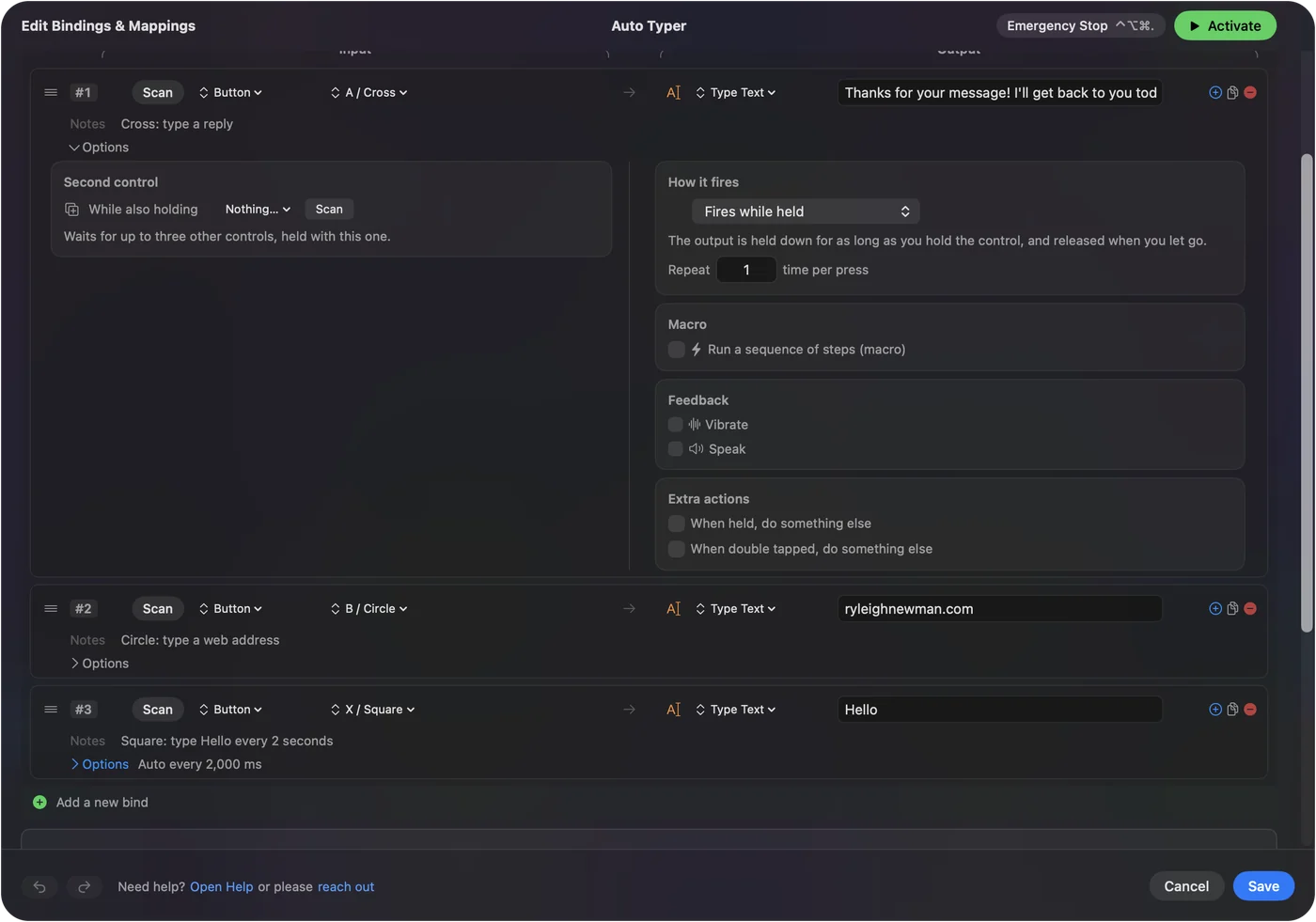
Do not store passwords this way
A preset is a plain file on your Mac, and the phrase is saved in it as ordinary text. That is fine for an address or a greeting. Keep passwords in the Passwords app or a password manager.
The short version
- Built in. Text Replacements, if you do not mind typing a short code.
- One press. A Type Text row in InputConfig on a spare key or button.
- Not for passwords. The phrase is stored as plain text.
One key for the thing you type ten times a day is worth the two minutes.
Questions
How do I type my email address with one key on a Mac?
Add a row in InputConfig with a spare key or button as the input and Type Text as the output, and enter the address. Or add a Text Replacement in System Settings, Keyboard, and type its short code.
Is this a text expander?
It does the same job from a different trigger. A text expander watches for a code you type. InputConfig types the phrase when you press a key, button or pad.
Can a mouse button or a game controller type text?
Yes. Any input InputConfig reads can have a Type Text output, including mouse side buttons, controller buttons, foot pedals and MIDI pads.
Can it type emoji?
Yes. Put the emoji in the Type Text field.
Related
Updated