Why is Logitech G HUB not opening on my Mac?
 InputConfig is completely free on the Mac App Store. You don't have to make an account, there are no subscriptions, and nothing is locked. Optimized for Apple silicon.
Three causes cover most cases, and Logitech documents each. An app stuck on its loading screen usually has its background item switched off in Login Items. An app that will not open at all may predate Logitech's fix for a certificate that expired in January 2026. A mouse that does not appear inside the app usually needs a clean reinstall and a permission approved in Privacy & Security.
Every fix below is from Logitech's own support articles, which I read on October 7, 2026. I make InputConfig, a free Mac app that gives mouse buttons a job without any maker's software. That is the last section, for when you only want the buttons to work.
On this page
Steps
- Open System Settings, General, Login Items and turn the Logitech items on.
- If the app will not open, install Logitech's certificate patch without uninstalling first.
- If the device is missing, remove the app, restart, reinstall, and approve it in Privacy & Security.
- Check the app's permissions under Privacy & Security: Accessibility and Input Monitoring.
Match the symptom to the fix
| What you see | Likely cause | Fix |
|---|---|---|
| Stuck on the loading screen | Background item off | Login Items |
| Will not open at all | Expired certificate, January 2026 | Logitech's patch installer |
| Opens, mouse is missing | Blocked component or a damaged settings file | Clean reinstall, then approve it |
| Buttons and scrolling do nothing | Permission not granted | Accessibility and Input Monitoring |
Start with Login Items, because it takes ten seconds to check.
Fix a loading screen that never ends
- You: Open System Settings, General, Login Items. Under the list of items allowed in the background, turn on the Logitech entries.
- macOS: Lets Logitech's background process run.
- Check: Quit and reopen G HUB or Logi Options+. It gets past the loading screen.
Logitech's article explains why: the apps install a background process that detects devices, and with it switched off the app waits forever. If you tidied up Login Items recently, that is very likely what stopped it.
Fix an app that stopped opening in 2026
On January 7, 2026 Logitech posted that an expired certificate had stopped Logi Options+ and G HUB from running on macOS, and published a patch installer for each. Its instructions have three points worth knowing:
- Do not uninstall first. The patch is applied over the installed app.
- Your settings stay. Logitech says customizations remain intact.
- It does not arrive by itself. The app's automatic update cannot deliver it, so you download the patch from Logitech's article.
The article covers macOS 12 through macOS 26, with a separate tool for macOS 12. An app that has not opened since January needs the patch, not a reinstall.
Fix a mouse that does not appear in G HUB
Logitech's steps for a device missing from G HUB on a Mac are a clean reinstall:
- Force quit G HUB.
- Move Logitech G HUB from Applications to the Trash.
- Restart the Mac.
- Install G HUB again from Logitech's site.
- When macOS shows a blocked prompt, open System Settings, Privacy & Security, and allow Logitech G HUB. A second prompt follows, and it needs the same answer.
If that does not help, Logitech's other route is to reset the settings file: quit G HUB, back up the file named settings.db in the LGHUB folder inside your Library's Application Support folder, delete the original, and reopen G HUB. Approve both prompts after reinstalling, or the mouse stays invisible.
Check the permissions
G HUB asks for Accessibility and Input Monitoring, and they decide whether your settings do anything. Both are under System Settings, Privacy & Security, and after a reinstall macOS also asks you there to allow G HUB's own components. For Logi Options+, see Logi Options+ not working on a Mac. A button assignment that saves but does nothing is usually a missing permission.
Use the mouse while the app is broken
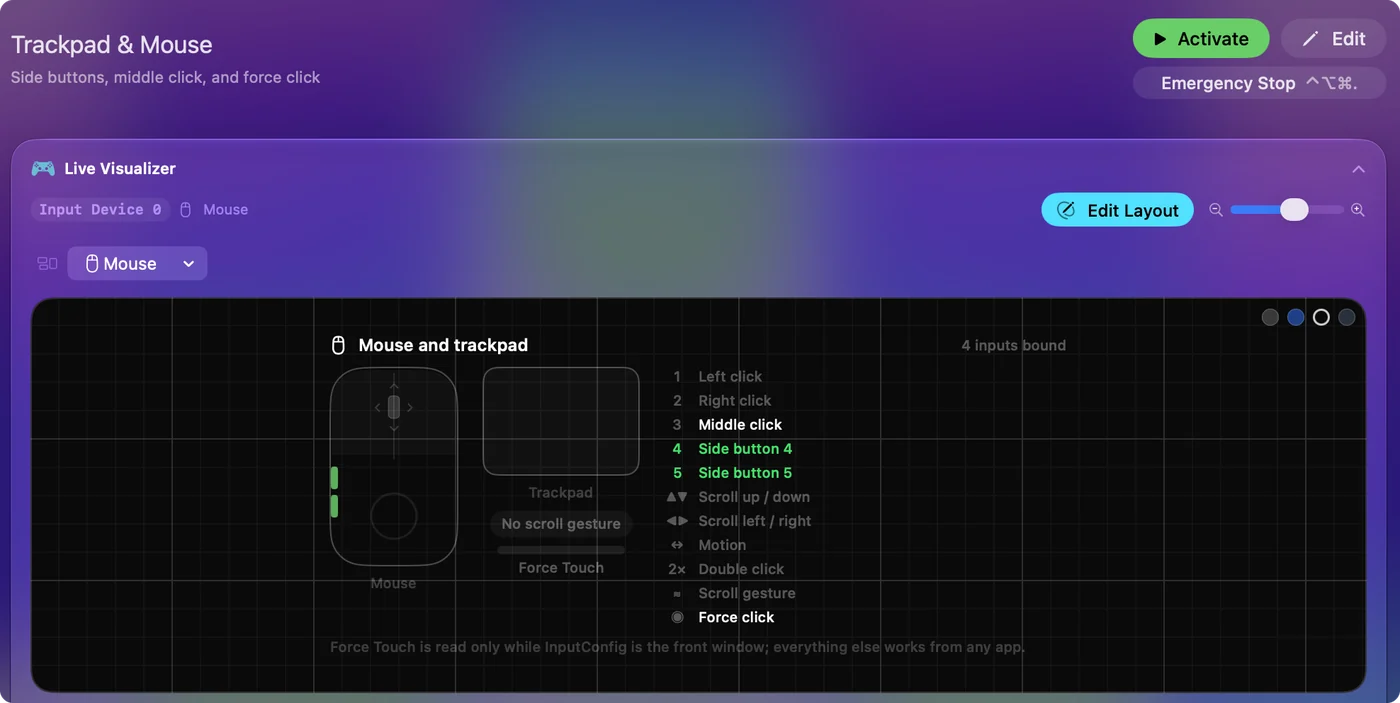
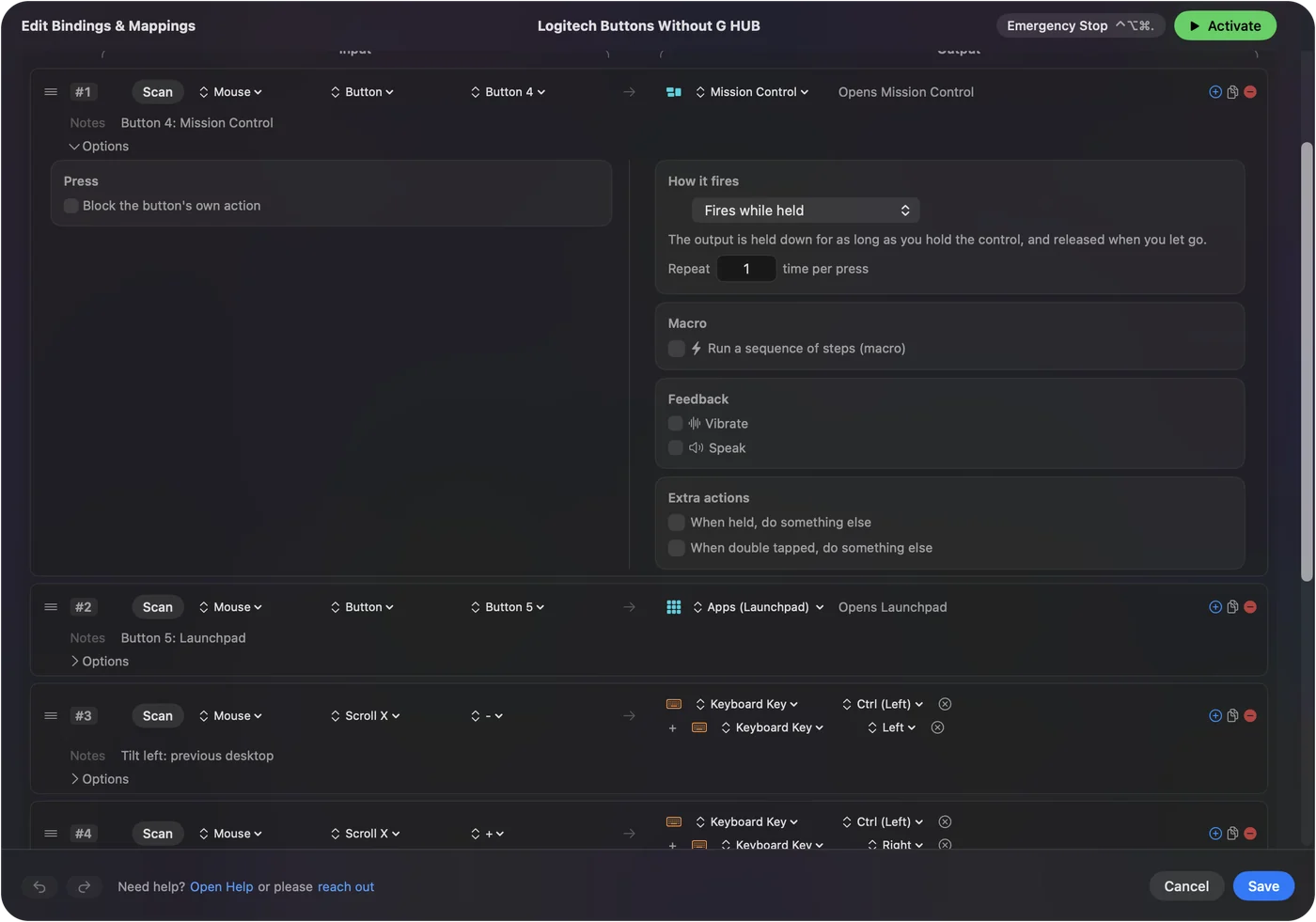
The mouse does not need Logitech's app to be a mouse: the pointer, clicks and scrolling work, and System Settings, Mouse sets the speed. The side buttons are the part that goes quiet. InputConfig reads them straight from macOS and gives each one a job, Back, Forward, a shortcut or a macro, in every app. Side buttons can work today, whatever state Logitech's app is in. A Logi Options+ alternative for Mac sorts out which features move and which do not, and mouse side buttons on a Mac has the setup.
The short version
- Loading forever. Go to System Settings, General, Login Items, and turn the Logitech items on.
- Will not open. Install Logitech's certificate patch over the app you already have.
- Mouse missing. Do a clean reinstall and approve both prompts.
- Meanwhile. A mapper keeps the side buttons working.
I would go in that order: Login Items first, then the patch, and a clean reinstall last.
Questions
Why is Logitech G HUB stuck on the loading screen on my Mac?
Logitech's support article says the app's background item has been switched off. Open System Settings, General, Login Items, and turn the Logitech entries on.
What if it is Logi Options+ that will not open?
Options+ has its own page with Logitech's permission list, the certificate patch and a complete uninstall.
Why does my mouse not show up in G HUB on a Mac?
Logitech's steps are to remove G HUB, restart, reinstall, and allow Logitech G HUB in System Settings, Privacy & Security when macOS shows a blocked prompt.
Can I use a Logitech mouse on a Mac without G HUB or Logi Options+?
Yes. The pointer, clicks and scrolling work with nothing installed, and a free mapper such as InputConfig can give the side buttons a job.
Related
This page in other languages: 日本語, Polski, Русский, 繁體中文, 简体中文
Updated