How to play Life Is Strange on a Mac with a controller
 InputConfig is completely free on the Mac App Store. You don't have to make an account, there are no subscriptions, and nothing is locked. Optimized for Apple silicon.
Feral's Mac version of Life Is Strange supports gamepads. Its FAQ lists the pads Feral tested, with the PS4 and PS3 DualShock, the Xbox One controller on a USB cable and Logitech's F310, F510 and F710 among them. Feral's manual says the default gamepad controls cannot be customized. Keys can, under Help & Options, Settings, Controls Settings, Edit Keybindings.
I got those facts and the default keys from Feral's FAQ and manual for the game, which I read on October 7, 2026. I have not tested Life Is Strange myself. If your pad does nothing in it, InputConfig, the free mapper I make, sends the game's keyboard and mouse controls from the pad.
On this page
Steps
- Connect the controller and check it under System Settings, Game Controllers.
- Quit the game, wake the controller, and open the game again.
- In Steam, try the game's Steam Input override both ways.
- If the game still ignores the pad, send its keyboard and mouse controls from the pad with a mapper.
Start with the game's own gamepad support
Connect the pad before you start Life Is Strange. Feral's FAQ lists the gamepads it tested, the PS4 and PS3 DualShock, Xbox 360 controllers, the Xbox One controller on a USB cable, and Logitech's F310, F510 and F710 among them. It says to write to its pad support address about a gamepad that is not on the list. Newer pads such as the PS5 DualSense are not listed. A PS4 DualShock is a good first choice here, because Feral tested it and macOS supports it directly. How to connect a PS4 controller to a Mac has the steps.
If the pad does nothing
- The Mac sees the pad. Open System Settings, click Game Controllers, and press a button on the pad.
- Relaunch with the pad awake. Quit Life Is Strange, press a button on the controller, and open it again.
- Flip the Steam Input override. In the Steam library, right-click Life Is Strange, open Properties, then Controller, and try the other setting.
- Disconnect other pads while you test. Then you know which one the game is reading.
If nothing lights up there, Life Is Strange has no chance of seeing the pad either. Controller works in Steam but not in the game has more on the Steam layer.
Send the game its keys instead
Life Is Strange plays fully on a keyboard and mouse, and a keyboard is never undetected. InputConfig reads your controller and sends those keys and mouse moves, so Life Is Strange sees a keyboard while you hold the pad. These are the default keys from Feral's manual:
| Action | Key |
|---|---|
| Move | W A S D |
| Camera | Mouse |
| Jog | Shift, held |
| Interact | Left mouse button, or C |
| Rewind | Right mouse button, or R, held |
| Fast rewind | Shift, held while rewinding |
| Rewind to the last action | Control |
| Journal | Tab |
| Reset the camera | T |
| Skip a cutscene | Space |
The game only has ten controls, so the layout takes a few minutes.
Build the layout
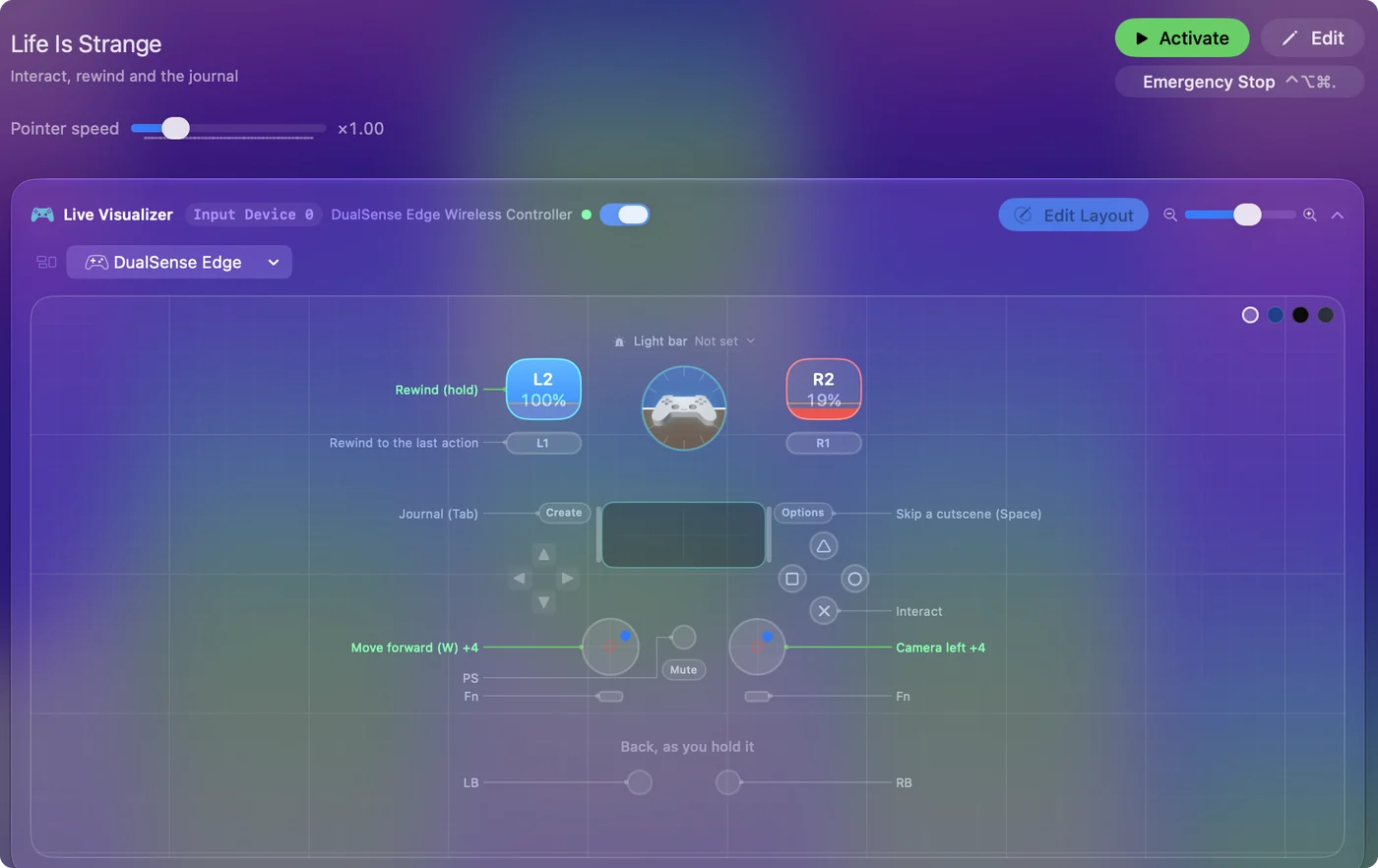
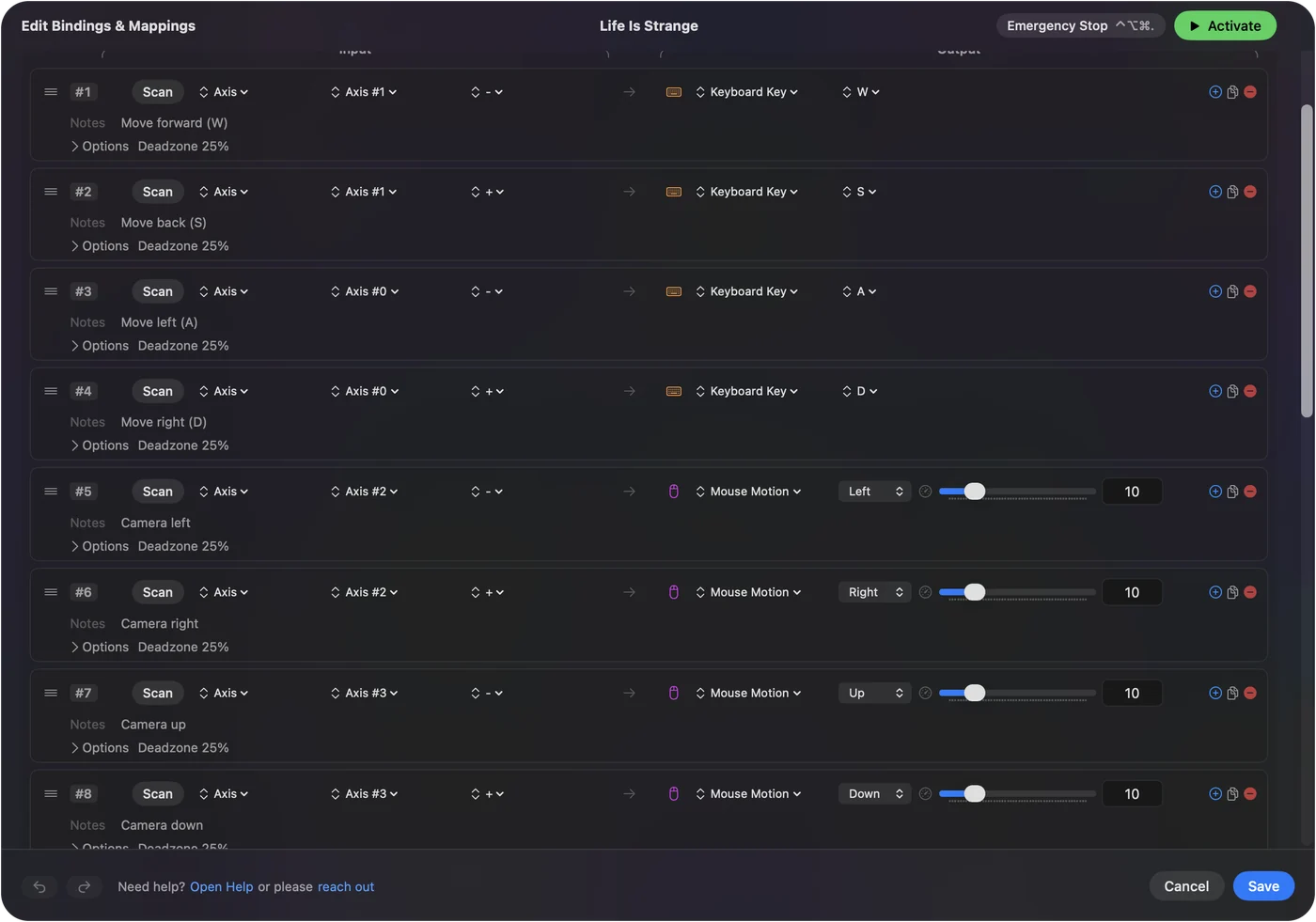
- You: In InputConfig, make a new preset. Set the left stick to WASD and the right stick to mouse movement.
- InputConfig: Sends those keys and mouse moves while the preset is active.
- Check: In Life Is Strange, the left stick walks and the right stick turns the camera.
- Triggers. R, held, to rewind on the left trigger. Shift on the right trigger jogs, and speeds up a rewind while it is held.
- Face buttons. C to interact, Control to jump back to the last action, Space to skip and Tab for the journal.
- Stick click. Use it for T, which resets the camera.
Rewind on a trigger feels right, because you hold it for as long as you want time to run back. Play any Mac game with a controller walks through a layout like this, and your first preset has the basics.
Change a layout the game has fixed
Feral's manual says the default gamepad controls cannot be customized. Keys can, under Help & Options, Settings, Controls Settings, Edit Keybindings. A layout sent from a mapper is yours to edit: move a button, swap the triggers, or put a second action on a hold. Because Life Is Strange locks its gamepad controls, a keyboard layout sent from the pad is the only one you can change. Hold and double tap covers the second action.
Use one route, not both
If Life Is Strange does read your controller, a mapper sending keys at the same time makes every press arrive twice. So pick one route. In InputConfig, a preset tied to the game only runs while that game is in front. If Life Is Strange already reads your pad, you do not need a mapper at all. Per-app switching can tie the preset to Life Is Strange.
The short version
- Tested pads. Feral's list has the PS4 and PS3 DualShock, the Xbox One controller on USB, and Logitech pads.
- Not working. Try Game Controllers first, then a relaunch, then the Steam Input override.
- Fallback. Send the ten keys from the pad, and the game sees a keyboard.
Try your pad first, and if Life Is Strange will not listen, send it keys instead.
Questions
Does Life Is Strange support controller on Mac?
Yes. Feral's FAQ for the Mac version of Life Is Strange lists the gamepads it tested, including the PS4 and PS3 DualShock, Xbox 360 controllers, the Xbox One controller over USB and Logitech pads.
Does a PS5 controller work with Life Is Strange on a Mac?
The DualSense is not on Feral's tested list for Life Is Strange, and I have not tested it. If the game ignores it, a mapper can send the game's keyboard and mouse controls from it.
Can I remap the controller in Life Is Strange on a Mac?
No. Feral's manual says the default gamepad controls cannot be customized. Keyboard controls can be, so a mapper that sends keys from the pad gives you a layout you can change.
Why is my controller not working in Life Is Strange on a Mac?
Check it under System Settings, Game Controllers, relaunch Life Is Strange with the pad awake, and try the Steam Input override both ways. If it still does nothing, send the game's keys from the pad.
Which keys does Life Is Strange use on a Mac?
By Feral's manual: W A S D to move, Shift to jog, the left mouse button or C to interact, the right mouse button or R held to rewind, Control to rewind to the last action, and Tab for the journal.
Related
This page in other languages: Русский
Updated