Pillars of Eternity II: Deadfire on a Mac with a controller
 The Pillars of Eternity II: Deadfire layout is built into InputConfig, free on the Mac App Store. You don't have to make an account, there are no subscriptions, and nothing is locked. Optimized for Apple silicon.
On a Mac: Native Mac version on Steam and GOG. Deadfire's gamepad support came late and is partial. This layout sends the keyboard and mouse it has always accepted.
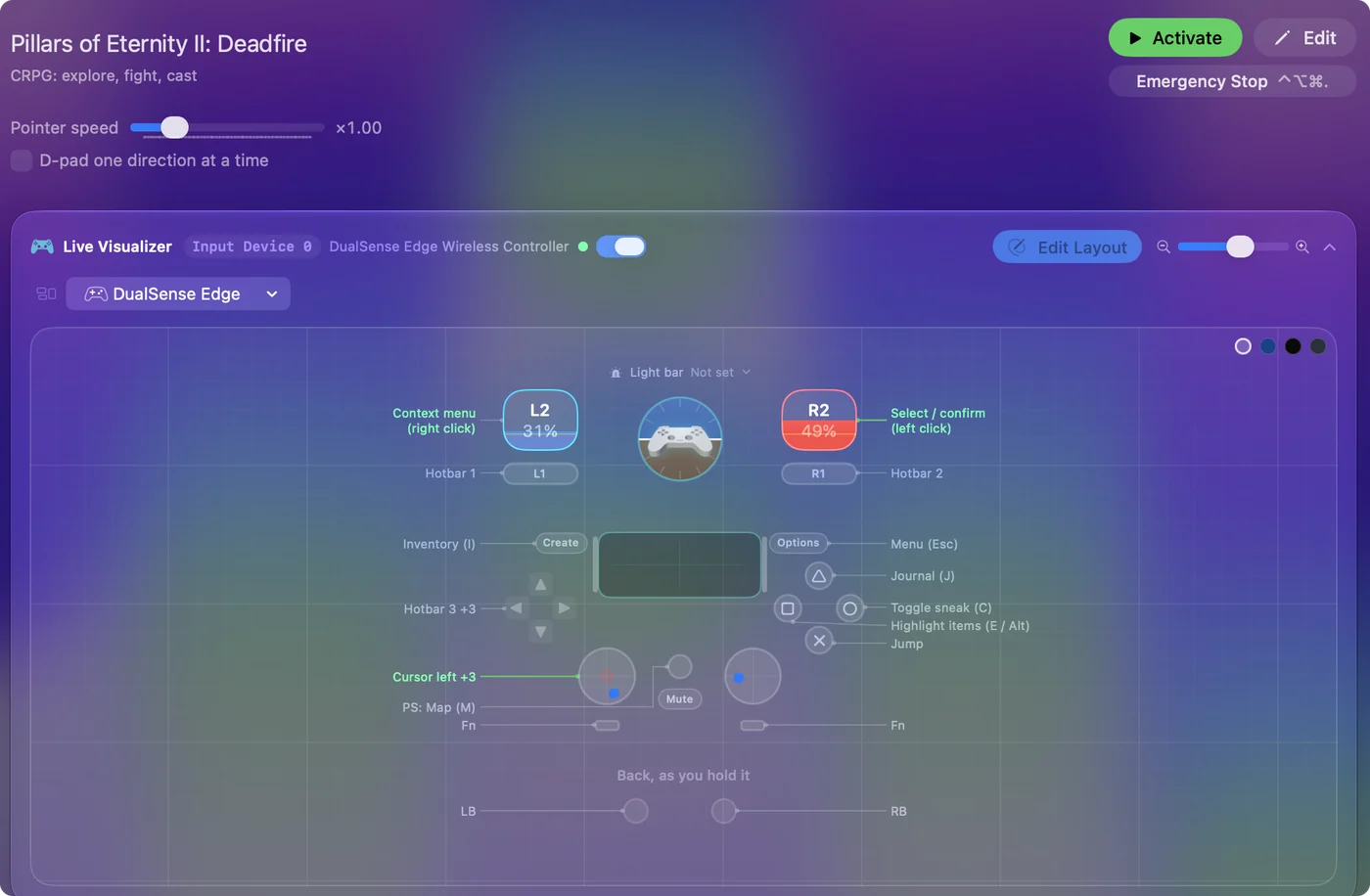
Yes, Pillars of Eternity II: Deadfire runs natively on the Mac, and with this layout a controller plays it properly: its own gamepad support came late and is partial. It is real-time with pause, and pause is the button that matters most. The rest is the CRPG layout: the pointer on the left stick, select and context on the triggers, six ability slots across the bumpers and D-pad.
The layout, control by control
How the layout thinks
- Pointer. The left stick moves the pointer at speed 16.
- Click. The right trigger selects and confirms (left click), the left trigger opens the context menu (right click).
- Face buttons. The bottom sends Space, labeled jump. Sneak toggle on the right (C), highlight items on the left (E), the journal on the top (J).
- Hotbar. Slots 1 and 2 on the bumpers, 3 to 6 on the D-pad.
- Menus. Inventory on Back (I), the map on the PS or Guide button (M), menu on Start (Escape).
The bottom face button already sends Space, the pause, though the row note calls it jump. Pause is the bottom face button, and you will press it more than any other.
Tune it
- A slow pointer for the ability bar. Duplicate the four left-stick rows, set While also holding to a spare button on the copies, and give them half the speed.
- Turn-based mode. The game has one, and it suits a controller better.
- Sailing. It is menus, and the pointer does it.
Turn-based mode and a controller in a lap are a good pair.
Check that it works
- You: Load a save, then press Activate on this preset.
- InputConfig: Sends the clicks and keys in the table.
- Check: Push the left stick and the pointer moves. Press the bottom face button and combat pauses.
If the game's partial pad support also reacts, one press does two things. Leave the pad unbound in the game. If Space pauses, the layout and the game agree.
Pillars of Eternity II: Deadfire controller support: controller or keyboard
Steam's store page lists no controller support for Pillars of Eternity II: Deadfire, so it was made for a keyboard and mouse, and that is how it expects to be played. A controller still works: this layout sends the game's keys and mouse movement from the pad, so to the game you are simply typing and pointing.
From Steam's listing, checked in October 2026. Every game's listing is in Mac games with controller support.
If your controller is not working in Pillars of Eternity II: Deadfire
When Pillars of Eternity II: Deadfire does not react to your controller on a Mac, check these in order:
- Check that the Mac sees the controller. Open the gamepad tester and press a button. If nothing lights up there, the problem is the connection, and a controller that is connected but not working covers that first.
- Check the Steam Input setting for Pillars of Eternity II: Deadfire. In Steam, open Pillars of Eternity II: Deadfire, Properties, Controller, and change the Steam Input override. A controller that works in Steam but not in the game goes through each choice.
- Play it from keys. If Pillars of Eternity II: Deadfire still ignores the pad, activate this layout. It sends the keyboard and mouse controls Pillars of Eternity II: Deadfire already reads. Turn the game's own controller option off while it runs, or a press can arrive twice. The layout works whether or not Pillars of Eternity II: Deadfire ever sees the controller.
Get it in two clicks
- Open InputConfig and click Smart Preset Maker on the welcome screen.
- Search for Pillars of Eternity II: Deadfire and pick it. The layout is created as a preset in your sidebar, named and ready.
- Press Activate. Every row can be changed afterwards: the editor's Scan button rebinds any control the moment you touch it.
Pillars of Eternity II: Deadfire controls: every button and the key it sends
The Sends column is Pillars of Eternity II: Deadfire's default keyboard and mouse controls, as this layout expects them. If you changed a key in the game's settings, change the same row in InputConfig.
| Controller | Sends | What it does |
|---|---|---|
| Left stick left | Mouse motion left (speed 16) | Cursor left |
| Left stick right | Mouse motion right (speed 16) | Cursor right |
| Left stick up | Mouse motion up (speed 16) | Cursor up |
| Left stick down | Mouse motion down (speed 16) | Cursor down |
| Right trigger | Left click | Select / confirm (left click) |
| Left trigger | Right click | Context menu (right click) |
| A / Cross | Space | Jump |
| B / Circle | C | Toggle sneak (C) |
| X / Square | E | Highlight items (E / Alt) |
| Y / Triangle | J | Journal (J) |
| LB / L1 | 1 | Hotbar 1 |
| RB / R1 | 2 | Hotbar 2 |
| D-pad up | 3 | Hotbar 3 |
| D-pad down | 4 | Hotbar 4 |
| D-pad left | 5 | Hotbar 5 |
| D-pad right | 6 | Hotbar 6 |
| Back / Share / Select | I | Inventory (I) |
| Home / PS / Guide | M | Map (M) |
| Start / Options | Escape | Menu (Esc) |
Names follow the editor's Xbox / PlayStation pair, and a Switch pad fires by position.
Questions
Does Pillars of Eternity II run on a Mac?
Yes, natively. Its gamepad support is partial, so this layout is how a controller plays it properly.
Related
Updated