PS Remote Play on a Mac with a controller
 InputConfig is completely free on the Mac App Store. You don't have to make an account, there are no subscriptions, and nothing is locked. Optimized for Apple silicon.
Sony's PS Remote Play app for Mac streams your PS5 or PS4 to the Mac, and it takes three controllers: the DualSense, the DualSense Edge and the DualShock 4. That list is Sony's, from its Remote Play manual for Mac, and there is no Xbox, Switch or third-party pad on it.
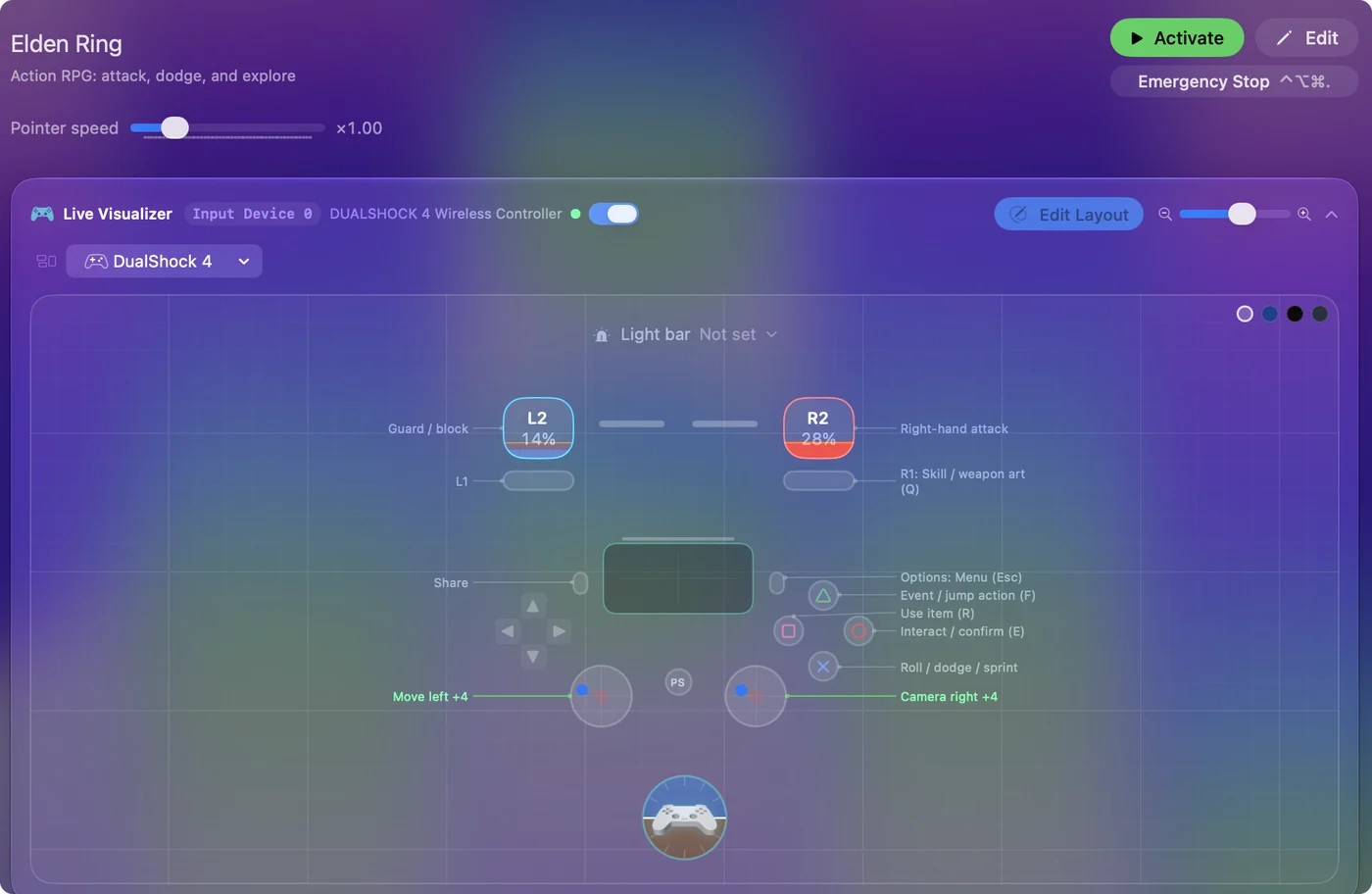
I make InputConfig, a free Mac app for controllers. The plain note for this page: you do not need it for Remote Play, and it cannot widen Sony's list.
On this page
Steps
- On the PS5, open Settings, System, Remote Play, and turn on Enable Remote Play.
- Connect a DualSense, DualSense Edge or DualShock 4 to the Mac, by USB cable or Bluetooth.
- Open PS Remote Play on the Mac and select Sign In.
- Sign in with the same account you use on the console.
- Select PS5, and wait for the console's screen to appear.
Know what Sony requires
From Sony's manual for the Mac app, as I read it on October 6, 2026:
- The Mac. Sony's support page, read on October 27, 2026, lists macOS Big Sur, Monterey, Ventura, Sonoma, Sequoia and Tahoe, with 40 MB of storage and 2 GB of memory or more.
- The console. A PS5 or PS4 on the latest system software.
- The account. The same account for PlayStation on the Mac and on the console.
- The connection. At least 5 Mbps up and down, and 15 Mbps for best performance.
- The controller. A DualSense, with the DualSense Edge and the DualShock 4 also listed.
A controller is on Sony's list of requirements, not on its list of options.
Install PS Remote Play on a Mac
Sony gives one install procedure for Windows and Mac, on its PS Remote Play support page, as I read it on October 27, 2026.
- Download the app from Sony's PS Remote Play download page.
- Run the installation file and follow the on-screen instructions.
- Open PS Remote Play and select Sign In.
To start over with a fresh copy, drag PS Remote Play from the Applications folder to the Trash, choose Finder, Empty Trash, and install the latest version. Reinstalling is Sony's own advice for a sign-in that fails.
Pick the connection for your controller
- DualSense. Bluetooth or a USB cable. Sony says haptic feedback is available when a DualSense or DualSense Edge is connected by USB cable.
- DualSense Edge. USB, or Bluetooth on a Mac running macOS Ventura 13.3 or later.
- DualShock 4. Bluetooth or a USB cable.
Pairing steps are on how to connect a PS5 controller to a Mac and how to connect a PS4 controller to a Mac. Use the cable if you want haptic feedback.
Set it up
- You: On the PS5, open Settings, System, Remote Play, and turn on Enable Remote Play. On the Mac, connect the controller, open PS Remote Play, select Sign In, and sign in with the console's account. Then select PS5.
- The app: Searches for the console signed in to that account and connects to it.
- Check: The console's screen appears on the Mac, and the controller moves through its menus.
To start a console that is in rest mode, Sony has you turn on Stay Connected to the Internet and Enable Turning On PS5 from Network, under Settings, System, Power Saving, Features Available in Rest Mode. Connect once near the console before you try from somewhere else, as Sony's manual advises.
If you cannot sign in or connect
Sony does not have a sign-in page of its own for this, so these steps come from its Remote Play troubleshooting guide, read on October 27, 2026. Climb this ladder, smallest step first:
- Check Sony's status page. If it shows alerts, wait for the service to recover.
- Restart the app. Then restart the Mac if it still fails.
- Use the same account. The Mac and the console must be signed in to the same one.
- Check the console. Remote Play must be on, and the console must be on or in rest mode and online.
- Connect near the console first. Sony says a Mac that has not signed in for a while may not find the console from far away.
- Check the network. Sony asks for 5 Mbps up and down, suggests a wired connection or 5GHz Wi-Fi, and says a firewall or antivirus can block the app.
- Reinstall the app. Trash it, empty the Trash and install the latest version.
Most failures end at the account, the console's Remote Play switch or the network.
Without a controller, or with an Xbox pad
- No controller. Moving the mouse over the Remote Play window shows a control panel with the Create, PS and Options buttons, the volume and the microphone. Those are not the buttons a game needs.
- An Xbox or Switch controller. Neither is on Sony's list.
- A mapper. InputConfig sends keyboard and mouse input to the Mac. It does not present a PlayStation controller to another app, so it cannot stand in for one here.
For Remote Play on a Mac the answer is a PlayStation controller.
If the controller is not working in Remote Play
Climb this ladder, smallest step first:
- Connect first, then open the app. Pair the controller with the Mac, or plug it in, before you start Remote Play.
- Check that the Mac sees it. Open Game Controllers in the System Settings sidebar and press a few buttons. Each one lights on screen.
- Use the cable. Sony's own steps connect the controller by USB.
- Stop other things reading it. If InputConfig is running a preset, deactivate it while you play, so the controller is not also sending keys to the Mac.
- Fix the pairing. PS5 controller will not connect to a Mac goes through it.
A controller the Mac itself cannot see will not reach Remote Play either.
The short version
- Works. The DualSense, DualSense Edge and DualShock 4 all work.
- Does not. It does not work with Xbox and Switch pads, or with no controller at all.
- Trouble. Check the account, the console's Remote Play switch and the network, then reinstall.
- Setup. Enable Remote Play on the console, sign in on the Mac with the same account, select PS5.
Remote Play is Sony's app with Sony's controller list, and nothing on the Mac changes that list.
Questions
How do I install PS Remote Play on a Mac?
Download the app from Sony's PS Remote Play download page, run the installation file, open the app and select Sign In with the same account you use on the console.
Why can't I sign in to PS Remote Play on a Mac?
Sony suggests checking its status page, restarting the app and the Mac, and reinstalling the app. Also check that the Mac and the console use the same account and that Remote Play is on in the console's settings.
Can I use an Xbox controller with PS Remote Play on a Mac?
Sony's manual for the Mac app lists the DualSense, the DualSense Edge and the DualShock 4, and no Xbox controller. A mapper cannot change that, because it sends keys and mouse movement, not a PlayStation controller.
Can I use PS Remote Play on a Mac without a controller?
Sony lists a controller among the things you need. The on-screen control panel has only the Create, PS and Options buttons, plus volume and microphone, which is not enough to play a game.
Which macOS versions does PS Remote Play support?
Sony's support page lists macOS Big Sur, Monterey, Ventura, Sonoma, Sequoia and Tahoe, as read on October 27, 2026.
Does haptic feedback work in PS Remote Play on a Mac?
Sony says you can experience haptic feedback when a DualSense or DualSense Edge is connected to the Mac with a USB cable.
Related
This page in other languages: Español
Updated