TUNIC on a Mac with a controller
 The TUNIC layout is built into InputConfig, free on the Mac App Store. You don't have to make an account, there are no subscriptions, and nothing is locked. Optimized for Apple silicon.
On a Mac: Native on macOS through Steam, with the game's own gamepad support. This layout is for pads the game does not detect.
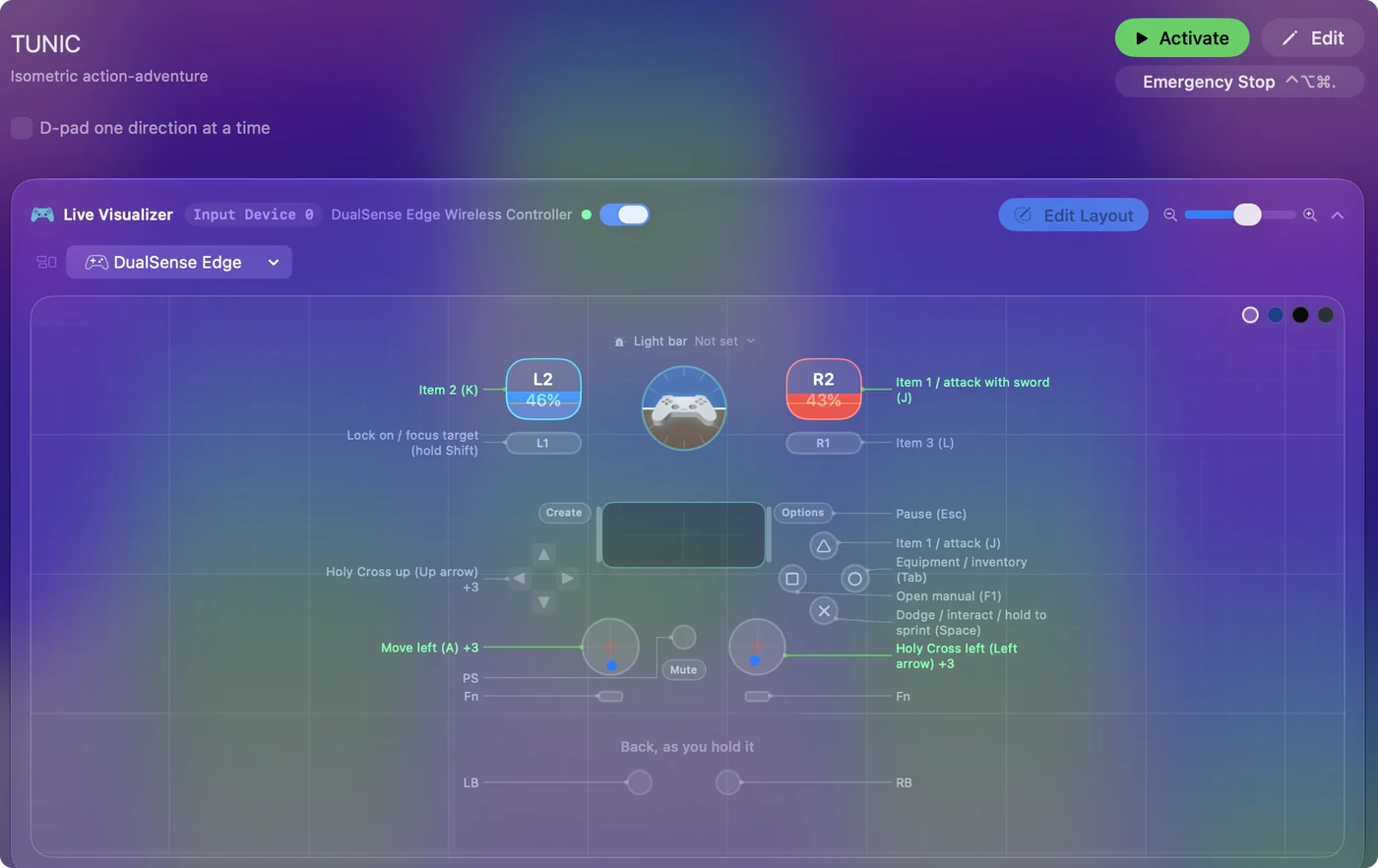
Yes, TUNIC plays on a Mac with a controller, and it supports one on its own. This layout is for the pad it misses. TUNIC has a secret input system, and the layout keeps it: the Holy Cross arrows are on the right stick and the D-pad, exactly where the manual expects them. Everything else is a small action game: move, dodge, three items, lock-on, and the manual on a button, because you will read it a lot.
The layout, control by control
How the layout thinks
- Move. The left stick moves (W, A, S and D).
- Holy Cross. The right stick and the D-pad both send the arrow keys, which are the Holy Cross inputs.
- Fight. Item 1 and the sword (J) are the right trigger and the top face button, item 2 (K) the left trigger, and item 3 (L) the right bumper. Lock-on (held Shift) is the left bumper.
- Move fast. The bottom face button dodges and interacts, and held it sprints.
- The manual and menus. The manual (F1) is the left face button, the inventory (Tab) the right, and Escape is on Options.
The secret inputs live on the right stick and the D-pad, so the layout keeps every secret the game hides.
Tune it
- Holy Cross on the D-pad. It is already there too. Some fingers prefer it.
- Lock-on that stays. Set the lock-on row to Toggles on and off.
- No camera stick. The camera is fixed, so there is nothing to tune there.
A toggled lock-on rests your finger through a long fight.
If TUNIC does not see your controller
TUNIC reads the controllers macOS hands it, and some pads, or a pad behind Steam Input, never arrive. Open InputConfig and press a button. If the app sees the pad, activate this layout and TUNIC gets the keys it always reads. If the app does not see it either, the connection is the problem: controller not recognized on Mac. When the game does see your pad, keep this preset off, or every press lands twice.
TUNIC controller support: controller or keyboard
Steam's store page lists full controller support for TUNIC, so the game was made to be played on a controller, menus included. A keyboard and mouse work as well, and the choice is yours. On a Mac, use the game's own controller support first when it sees your pad. This layout is for a pad it does not see, or for buttons it will not let you move.
From Steam's listing, checked in October 2026. Every game's listing is in Mac games with controller support.
If your controller is not working in TUNIC
When TUNIC does not react to your controller on a Mac, check these in order:
- Check that the Mac sees the controller. Open the gamepad tester and press a button. If nothing lights up there, the problem is the connection, and a controller that is connected but not working covers that first.
- Check the Steam Input setting for TUNIC. In Steam, open TUNIC, Properties, Controller, and change the Steam Input override. A controller that works in Steam but not in the game goes through each choice.
- Play it from keys. If TUNIC still ignores the pad, activate this layout. It sends the keyboard and mouse controls TUNIC already reads. Turn the game's own controller option off while it runs, or a press can arrive twice. The layout works whether or not TUNIC ever sees the controller.
Get it in two clicks
- Open InputConfig and click Smart Preset Maker on the welcome screen.
- Search for TUNIC and pick it. The layout is created as a preset in your sidebar, named and ready.
- Press Activate. Every row can be changed afterwards: the editor's Scan button rebinds any control the moment you touch it.
TUNIC controls: every button and the key it sends
The Sends column is TUNIC's default keyboard and mouse controls, as this layout expects them. If you changed a key in the game's settings, change the same row in InputConfig.
| Controller | Sends | What it does |
|---|---|---|
| Left stick left | A | Move left (A) |
| Left stick right | D | Move right (D) |
| Left stick up | W | Move up (W) |
| Left stick down | S | Move down (S) |
| Right stick left | Left | Holy Cross left (Left arrow) |
| Right stick right | Right | Holy Cross right (Right arrow) |
| Right stick up | Up | Holy Cross up (Up arrow) |
| Right stick down | Down | Holy Cross down (Down arrow) |
| Right trigger | J | Item 1 / attack with sword (J) |
| Left trigger | K | Item 2 (K) |
| RB / R1 | L | Item 3 (L) |
| A / Cross | Space | Dodge / interact / hold to sprint (Space) |
| LB / L1 | Shift (Left) | Lock on / focus target (hold Shift) |
| Y / Triangle | J | Item 1 / attack (J) |
| X / Square | F1 | Open manual (F1) |
| B / Circle | Tab | Equipment / inventory (Tab) |
| Start / Options | Escape | Pause (Esc) |
| D-pad up | Up | Holy Cross up (Up arrow) |
| D-pad down | Down | Holy Cross down (Down arrow) |
| D-pad left | Left | Holy Cross left (Left arrow) |
| D-pad right | Right | Holy Cross right (Right arrow) |
Names follow the editor's Xbox / PlayStation pair, and a Switch pad fires by position.
Questions
Does TUNIC on Mac support controllers?
Yes. This layout is for pads it does not see, with the secret inputs kept on the right stick.
Why is TUNIC not recognizing my controller on Mac?
TUNIC reads the controllers macOS hands it, and some pads, or a pad behind Steam Input, never arrive. Open InputConfig and press a button: if the app sees the pad, activate this layout and TUNIC gets the keyboard keys it always reads. If the app does not see it either, the connection is the problem: controller not recognized on Mac.
Related
Updated