Edit text from a game controller
 The Text Editing layout is built into InputConfig, free on the Mac App Store. You don't have to make an account, there are no subscriptions, and nothing is locked. Optimized for Apple silicon.
On a Mac: Sends the arrow keys and standard editing shortcuts, so it works anywhere there is a text cursor: Word, Pages, Notes, Mail, a browser text box.
Yes, you can fix dictated text from a game controller on a Mac: the arrow keys on the D-pad, a word at a time on the bumpers, copy, paste, undo and select all on the face buttons. It works anywhere there is a text cursor: Word, Pages, Notes, Mail, a browser text box. Writing from a controller is dictating and then fixing, and this is the fixing half.
The layout, control by control
How the layout thinks
- Move by character and line. The D-pad is the four arrow keys.
- Move by word. Option Left Arrow and Option Right Arrow on the bumpers.
- Edit. Copy, Paste, Undo and Select All on the face buttons.
- Point and click. The left stick is the pointer, and the right trigger clicks.
Make a held D-pad repeat
- You: Open each D-pad row's Options and turn on Repeat keys while held.
- InputConfig: Repeats the arrow key while you hold, like a held key on a keyboard, at the repeat rate set in System Settings, Keyboard.
- Check: Hold D-pad right in a long line. The text cursor keeps moving until you let go.
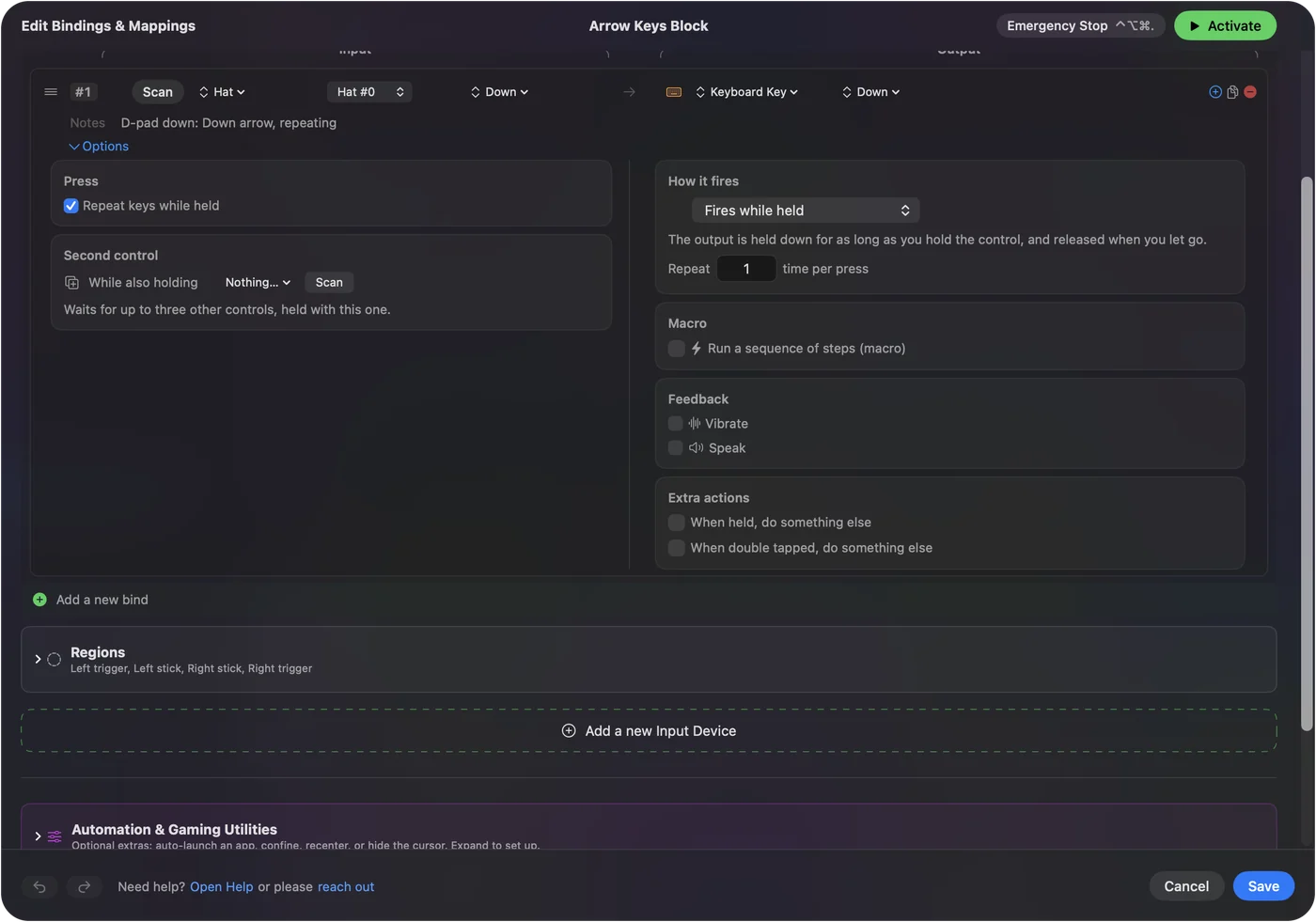
Without it, a held D-pad moves one character, and with it, the cursor runs.
Tune it for selecting and deleting
- Select. Put Shift and the arrows behind a chord on the D-pad. Shift Option and the arrows behind a chord on the bumpers selects by word.
- Line start and end. Put Command and the arrows behind another chord.
- Delete a word. Put Option Delete on a stick click.
- Dictation. It is the other half of writing, and it goes on the touchpad press.
- One hand on a mouse. The built-in Easy Edit preset is this idea for a controller in one hand and a mouse in the other.
Dictation writes the words, and this layout fixes them.
Get it in two clicks
- Open InputConfig and click Smart Preset Maker on the welcome screen.
- Search for Text Editing and pick it. The layout is created as a preset in your sidebar, named and ready.
- Press Activate. Every row can be changed afterwards: the editor's Scan button rebinds any control the moment you touch it.
Every binding, as a table
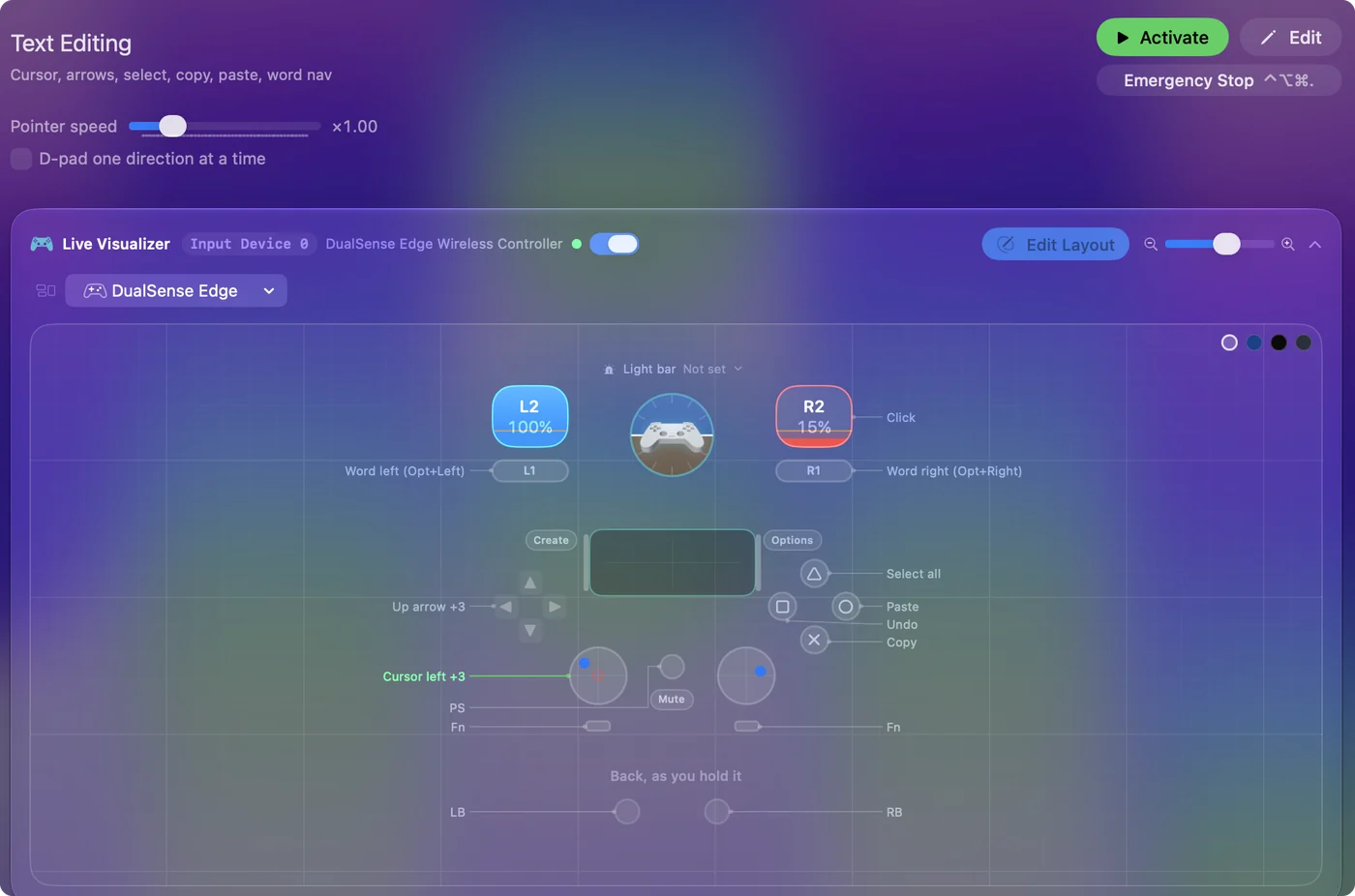
| Controller | Sends | What it does |
|---|---|---|
| Left stick left | Mouse motion left (speed 16) | Cursor left |
| Left stick right | Mouse motion right (speed 16) | Cursor right |
| Left stick up | Mouse motion up (speed 16) | Cursor up |
| Left stick down | Mouse motion down (speed 16) | Cursor down |
| Right trigger | Left click | Click |
| D-pad up | Up | Up arrow |
| D-pad down | Down | Down arrow |
| D-pad left | Left | Left arrow |
| D-pad right | Right | Right arrow |
| A / Cross | Command (Left), C | Copy |
| B / Circle | Command (Left), V | Paste |
| X / Square | Command (Left), Z | Undo |
| Y / Triangle | Command (Left), A | Select all |
| LB / L1 | Alt / Option (Left), Left | Word left (Opt+Left) |
| RB / R1 | Alt / Option (Left), Right | Word right (Opt+Right) |
Names follow the editor's Xbox / PlayStation pair, and a Switch pad fires by position.
Questions
Is this a full keyboard replacement?
With dictation, for prose, yes. You speak the words and fix them from the pad.
Related
Updated