Cuphead on a Mac with a controller
 The Cuphead layout is built into InputConfig, free on the Mac App Store. You don't have to make an account, there are no subscriptions, and nothing is locked. Optimized for Apple silicon.
On a Mac: Native on macOS through Steam, which lists full controller support. Use that first. This layout is for a pad it does not see and for accessibility remaps.
Yes, Cuphead supports controllers natively on the Mac, so most pads work in the game as they are. If your pad does nothing, the checks below fix most cases, and if a hand needs shooting to be a hold rather than a mash, this layout adds the auto-fire the game lacks.
The layout, control by control
If Cuphead does not see your controller
Climb this ladder, smallest step first:
- Check the Mac. Game Controllers in the System Settings sidebar should list the pad and light up when you press a button. If it is not there, pair it again first.
- Relaunch with the pad awake. Quit Cuphead, press a button on the pad, and relaunch, because the game may only look for controllers at start-up.
- Change Steam Input. On Steam, change Cuphead's Steam Input override under Properties, Controller and try each way. Why that switch matters.
- Send keys. Pick Cuphead in the Smart Preset Maker and press Activate. This layout sends Cuphead's keyboard keys from the controller.
If a press later does two things, the game has started reading the pad as well, so use one or the other.
How the layout thinks
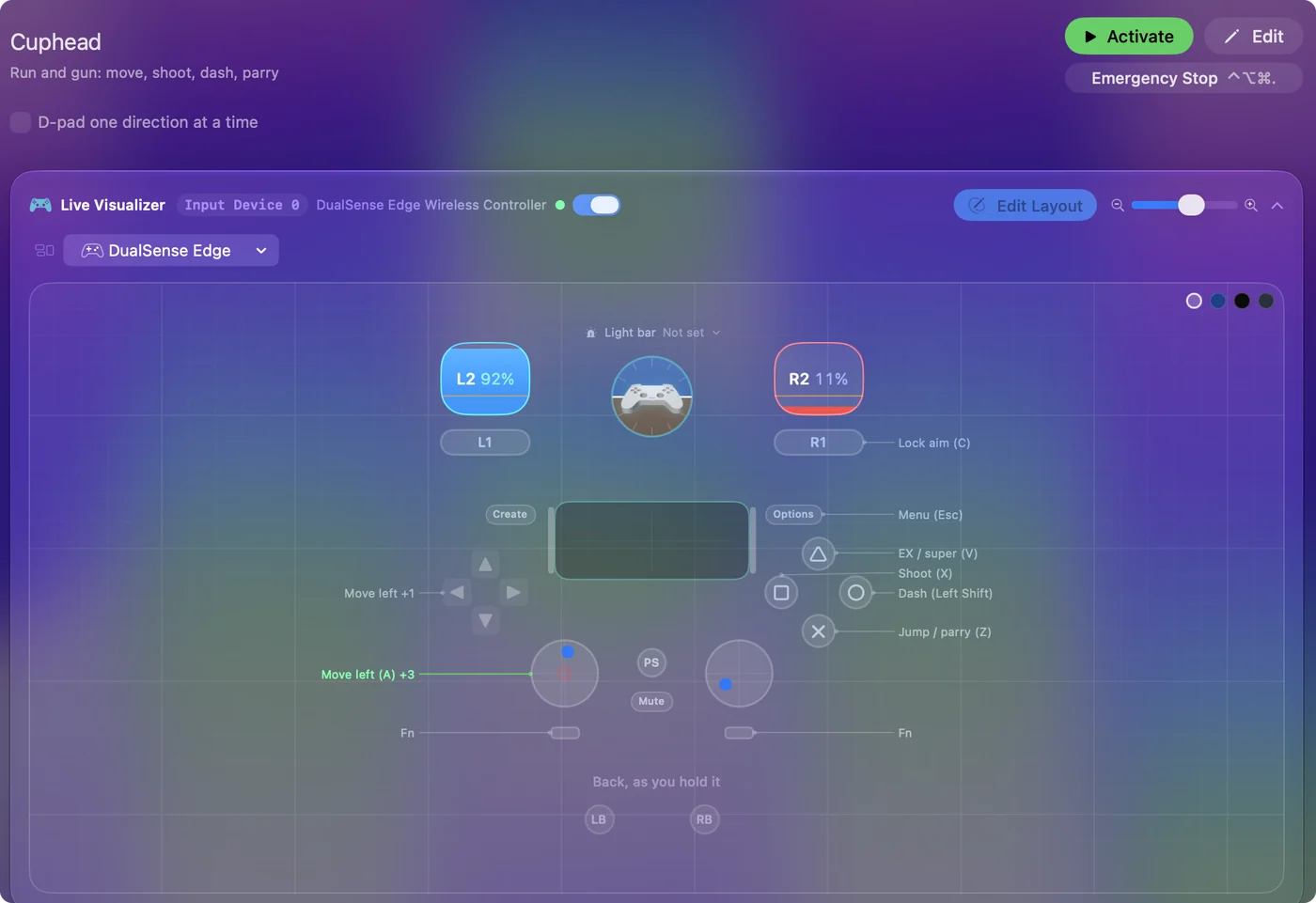
Cuphead's keyboard defaults are X to shoot, Z to jump and parry, Left Shift to dash, V for the EX move and C to lock aim, and the layout sends those.
- Move and aim. On both the left stick and the D-pad. Up and down on the stick aim up and duck (W and S).
- Face buttons. Shoot on the left, jump and parry on the bottom, dash on the right, EX on the top.
- Lock aim. The right bumper. Start opens the menu.
The keys match the game's defaults, so nothing changes in Cuphead's options.
Go past the game's own options
- Auto-fire. Set the shoot row to Toggles on and off, and one press keeps you firing until the next. The game has no option for this, and it changes how the boss fights feel for a hand that tires.
- Parry on a finger. Duplicate the jump row onto the left bumper. Some players parry better with a finger than a thumb.
- Lock aim that stays. The same toggle on the lock row.
- Simple mode. The game's own difficulty option combines with all of the above.
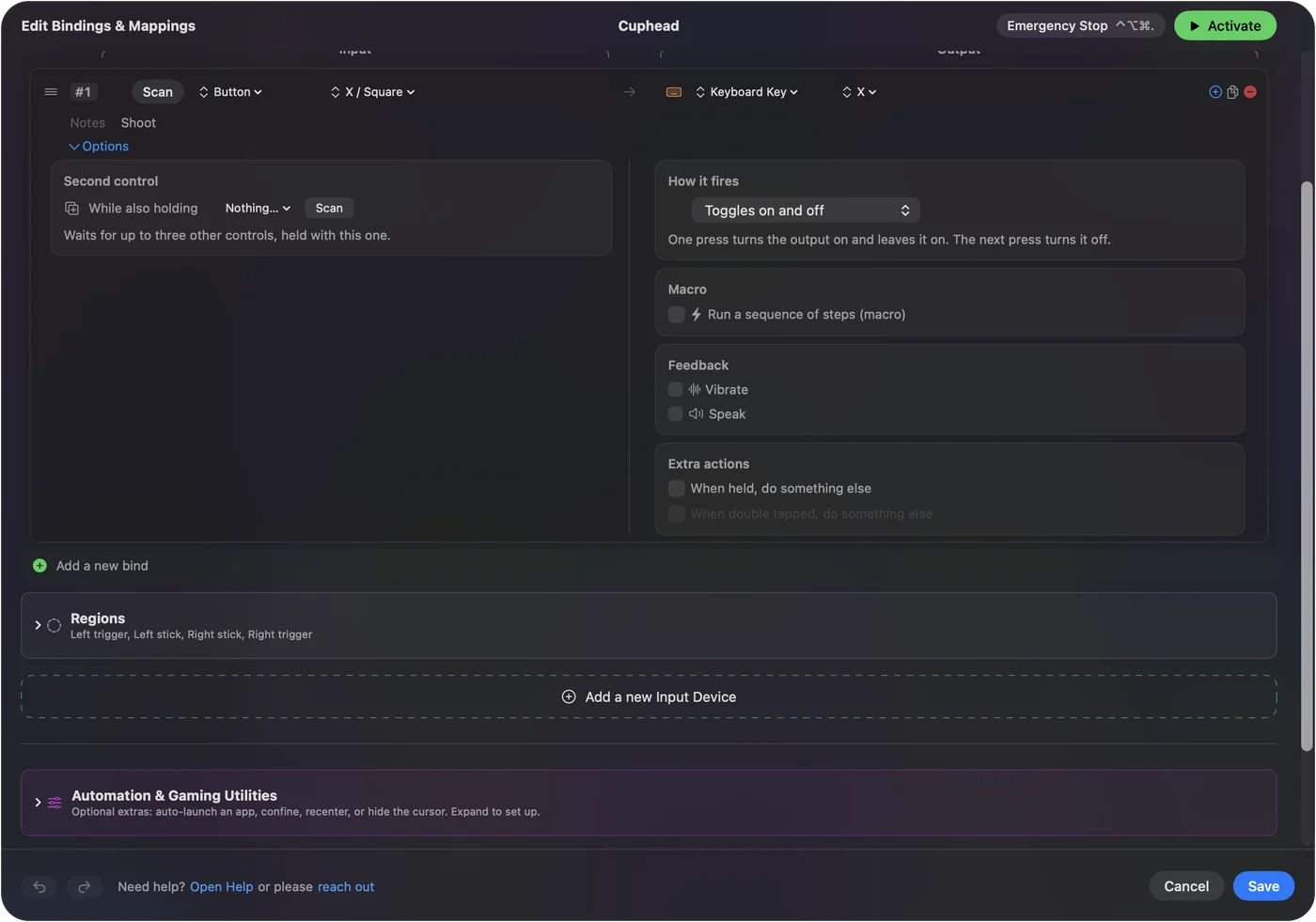
Auto-fire on a toggle is the one change that makes the bosses kinder to a tired hand.
Cuphead controller support: controller or keyboard
Steam's store page lists full controller support for Cuphead, so the game was made to be played on a controller, menus included. A keyboard and mouse work as well, and the choice is yours.
From Steam's listing, checked in October 2026. Every game's listing is in Mac games with controller support.
Get it in two clicks
- Open InputConfig and click Smart Preset Maker on the welcome screen.
- Search for Cuphead and pick it. The layout is created as a preset in your sidebar, named and ready.
- Press Activate. Every row can be changed afterwards: the editor's Scan button rebinds any control the moment you touch it.
To check the controller itself first, the gamepad tester shows every button and stick live in your browser.
Cuphead controls: every button and the key it sends
The Sends column is Cuphead's default keyboard and mouse controls, as this layout expects them. If you changed a key in the game's settings, change the same row in InputConfig.
| Controller | Sends | What it does |
|---|---|---|
| Left stick left | A | Move left (A) |
| Left stick right | D | Move right (D) |
| Left stick up | W | Aim up (W) |
| Left stick down | S | Duck / aim down (S) |
| D-pad left | A | Move left |
| D-pad right | D | Move right |
| A / Cross | Z | Jump / parry (Z) |
| X / Square | X | Shoot (X) |
| B / Circle | Shift (Left) | Dash (Left Shift) |
| Y / Triangle | V | EX / super (V) |
| RB / R1 | C | Lock aim (C) |
| Start / Options | Escape | Menu (Esc) |
Names follow the editor's Xbox / PlayStation pair, and a Switch pad fires by position.
Questions
Does Cuphead on Mac support controllers?
Yes. Steam lists full controller support for the Mac version. This layout is for pads it does not see and for remaps like auto-fire that the game cannot do.
Can two people play Cuphead on one Mac?
Yes. Cuphead has local co-op for two players, and two controllers the game sees work directly. Pair both with the Mac before you launch.
Related
Updated