Game controller to OSC on a Mac
 InputConfig is completely free on the Mac App Store. You don't have to make an account, there are no subscriptions, and nothing is locked. Optimized for Apple silicon.
You can send OSC from a game controller on a Mac today, through a bridge. InputConfig does not send OSC itself, but it sends MIDI, and the free bridge app Chataigne turns that MIDI into OSC for anything that listens: Resolume, TouchDesigner, QLab, Max, Eos consoles, and more.
This guide is how I would set it up today, in about fifteen minutes, plus a look at the other options.
On this page
Steps
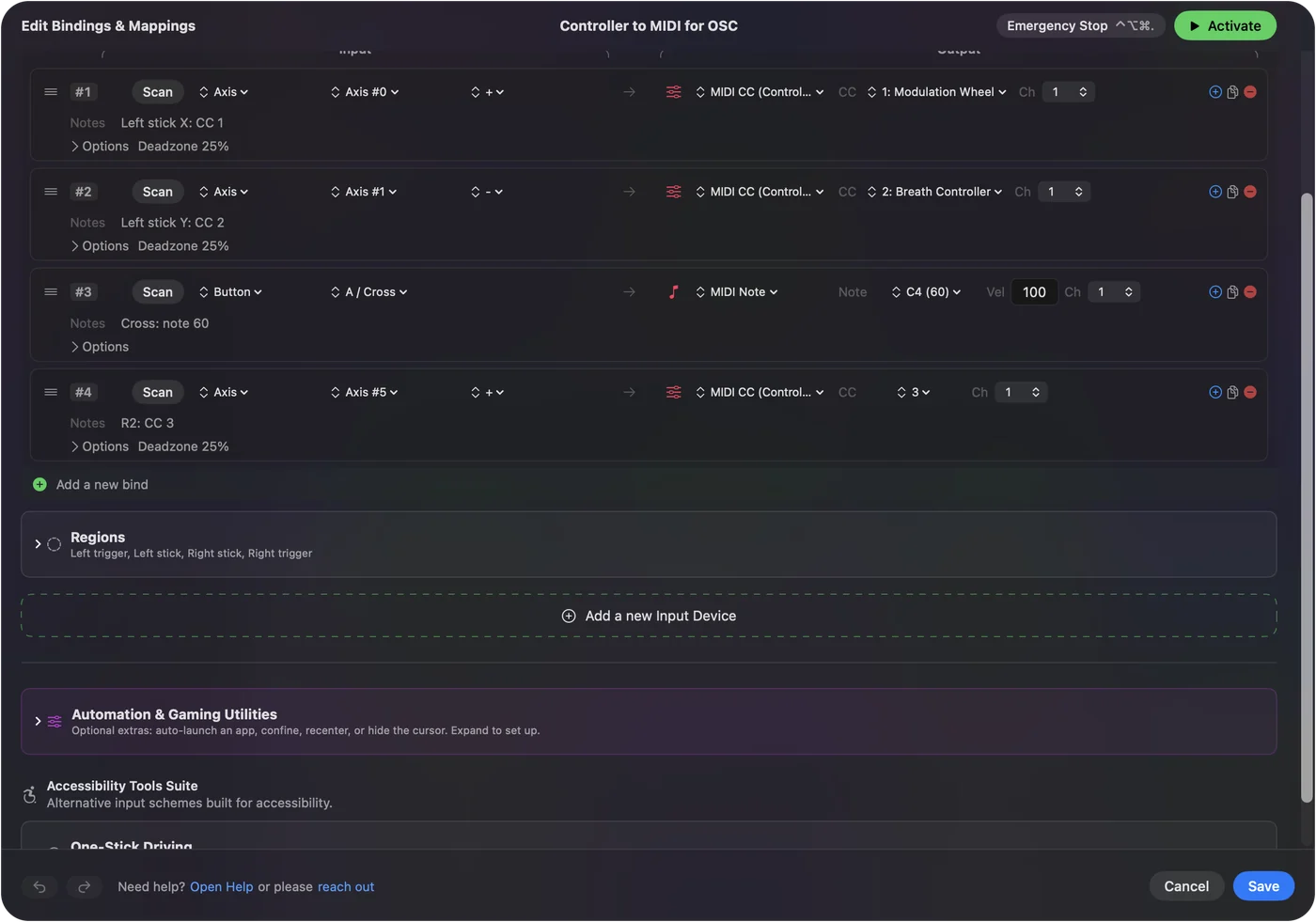
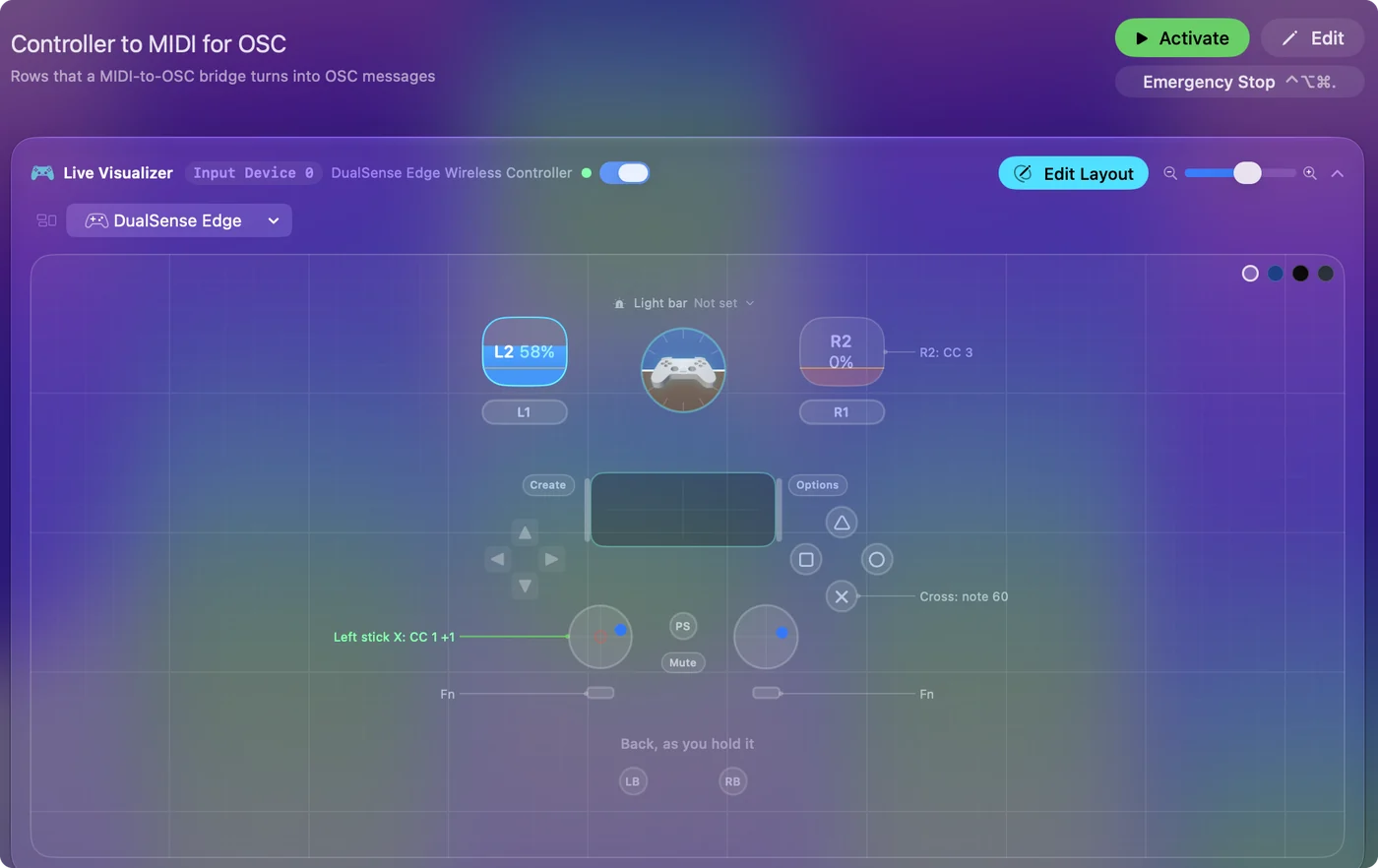
- Connect your controller, open InputConfig, and turn on a preset that sends MIDI (the Lighting Desk or Gamepad Synth presets both work).
- Install Chataigne, which is free and runs natively on Apple silicon.
- In Chataigne, add a MIDI module and pick InputConfig as its input device.
- Add an OSC module and set the target to the app you want to control: 127.0.0.1 if it is on the same Mac, plus the port that app listens on.
- Create a mapping from each MIDI control to an OSC address, and scale 0 to 127 down to 0 to 1 if the receiving app expects that.
- Move the controller and watch the values arrive in the receiving app.
Why there is a bridge
OSC runs over the network, and InputConfig makes no network connections at all. I care about that, and it is a promise in the app's privacy policy. So the network part is left to the bridge.
MIDI, on the other hand, stays entirely on your Mac. InputConfig hands MIDI to the bridge, and the bridge does the network part.
Skip OSCulator for new setups
For years OSCulator was the answer to this exact question, and it is still what a lot of old forum posts recommend. The last version is Intel only, which means it relies on Rosetta, and Apple has said macOS 27 is the last version to fully support Intel apps. Chataigne is the closest replacement I have found.
Send OSC through Chataigne
Chataigne is free, open source, and runs natively on Apple silicon. It takes MIDI in and sends OSC out, and it can also send DMX, Art-Net, and sACN if you end up doing lights.
Step 1: Send MIDI from InputConfig
- You: Turn on a preset that sends MIDI. The Lighting Desk preset puts faders on the triggers and notes on the buttons. The Gamepad Synth preset covers the sticks too.
- InputConfig: Sends the controller's moves on its MIDI port, named InputConfig.
- Check: The preset shows as running in InputConfig.
Step 2: Read it in Chataigne
- You: In Chataigne, add a MIDI module and choose InputConfig as the device.
- Chataigne: Lists every value that arrives from the port.
- Check: Move a trigger and its value changes in the module.
Step 3: Point OSC at the target
- You: Add an OSC module and set the target: 127.0.0.1 when the receiving app is on the same Mac, or the other computer's IP address if it is on your network, plus the port that app listens on.
- Chataigne: Sends OSC messages to that address and port.
- Check: The port matches the one the receiving app listens on.
Step 4: Map each control
- You: Create a mapping with the MIDI value as the input and an OSC message as the output. Most apps want 0 to 1 instead of 0 to 127, and Chataigne can remap that in the mapping.
- Chataigne: Converts each MIDI move into an OSC message.
- Check: Move the controller and watch the value arrive in the receiving app. A good first test is one trigger to one fader.
OSC target on the same Mac: Type this as the OSC module's host.
127.0.0.1What happens: Chataigne sends to an app running on this Mac. Add that app's port beside it.
Find the OSC addresses
Every app names its controls differently, so check its docs for the addresses it listens to. Resolume, QLab, and ETC's Eos family all document their OSC commands, and TouchDesigner's OSC In CHOP takes whatever you send it. For lights you may not need OSC at all: QLC+ and Lightkey read MIDI directly.
If nothing arrives
Climb this ladder, most common mistake first:
- Check the port. The receiving app has to listen on the same port the bridge sends to. It is the mistake I make most.
- Allow Local Network. On macOS 15 and later, apps need permission to reach other devices on your local network. If OSC is not showing up on another computer, allow the bridge app in System Settings, Privacy & Security, Local Network. InputConfig itself does not need this permission, since MIDI never leaves your Mac.
- Check the scale. If a value arrives but barely moves, the receiving app probably expects 0 to 1. Remap it in Chataigne.
Choose CC or pitch bend for smoothness
- MIDI CC. 128 steps, plenty for opacity, volume, or effect amounts.
- Pitch bend. 16,384 steps, for something that needs to be really smooth. The Gamepad Synth preset already puts it on the right stick. Map that to your most sensitive control.
MIDI stays inside your Mac, so the bridge adds very little lag. Bluetooth is usually the slowest link in the chain, and a cable helps for shows. Put pitch bend on the control that has to move smoothly.
Other options, honestly
If all you need is a controller sending OSC and nothing else, there are good tools that read game controllers directly: TouchOSC can do it, and so can Chataigne on its own. InputConfig makes sense when you want the same controller doing more than that: keys, the mouse, and MIDI into your DAW, all from one preset that follows you from app to app.
The short version
- InputConfig sends MIDI. It does not send OSC.
- Chataigne bridges it. Set up a MIDI module in and an OSC module out, with one mapping per control.
- Check the port first. Then check Local Network on macOS 15 and later.
MIDI in, OSC out: the bridge does the network part so InputConfig never has to.
Questions
Does InputConfig send OSC directly?
No. It sends MIDI, and a bridge like Chataigne turns that into OSC.
What happened to OSCulator?
The last version is Intel only and relies on Rosetta, so Chataigne is the one I would use now.
Will this work with an OSC lighting console?
Anything that accepts OSC works, including the Eos family. For lights you might not need OSC at all, though. QLC+ and Lightkey read MIDI directly.
Is there a lot of lag?
MIDI stays inside your Mac, so the bridge adds very little. Bluetooth is usually the slowest link in the chain, and a cable helps for shows.
Related
Updated